Training Disclaimer
This course is designed for educational and exam preparation purposes only. All information contained within is intended to build foundational knowledge for entry-level cybersecurity and IT roles.
Purpose & Scope
The Cyber Baseline Training Program (CBTP) is an instructor-led and self-paced training program designed to prepare candidates for the CBTP certification exam and entry-level IT/cybersecurity positions.
Authorized Use
All techniques, commands, and procedures described in this course are for educational and authorized testing environments only. Never apply offensive techniques to systems you do not own or have explicit written authorization to test.
Accuracy
While every effort is made to keep materials accurate and current, technology changes rapidly. Always verify critical information against official vendor documentation and current industry standards.
Certification
Completion of this course does not guarantee certification. The CBTP exam is administered separately. Course materials are intended to supplement, not replace, hands-on lab practice.
Welcome to CBTP
The Cyber Baseline Training Program is a structured curriculum that takes you from computing fundamentals through advanced networking, Windows and Linux administration, and security analysis — all the skills you need to excel in entry-level IT and cybersecurity roles.
Who This Is For
This course is designed for individuals targeting their first IT or cybersecurity role, preparing for the CBTP certification, or seeking to formalize and strengthen their existing knowledge. No prior experience is required — but curiosity and persistence are.
How the Course Is Structured
- Logic & Cognitive Skills — Develop the analytical thinking required for technical problem-solving
- OSI Model — Master the foundational networking reference model
- Unix & Command Line — Navigate Linux/Unix systems with confidence
- Windows — Understand Windows architecture, authentication, and administration
- Networking Protocols & Ports — Learn IPv4/IPv6, routing, DNS, DHCP, and more
- Subnetting — Calculate subnets by hand quickly and accurately
- Security Basics & Malware — Recognize threats and understand defenses
- Packet Analysis — Read and interpret network captures
- Capstone — Demonstrate integrated mastery
How to Use This Platform
- Each module has a Reading Material tab — read it before attempting the quiz
- Each quiz provides instant feedback with explanations — read them even when correct
- Use the Discussion tab to ask questions, flag errors, or share insights
- Video resource slots let instructors embed supplemental content per module
Upon completing this course, you will be able to:
Networking
- Explain the OSI model and map protocols to each layer
- Calculate subnets, host ranges, and broadcast addresses by hand
- Describe IPv4 address classes, private ranges, and APIPA behavior
- Compare IPv6 address types and explain compression rules
- Explain DHCP DORA process, BOOTP, and NetBIOS port usage
- Differentiate distance vector, link state, and path vector routing protocols
- Describe Administrative Distance and longest prefix match
- Construct and interpret Access Control Lists
Unix / Linux
- Navigate the Linux filesystem hierarchy and explain directory purposes
- Interpret and modify file permissions using octal and symbolic notation
- Read and filter system, authentication, and kernel logs
- Manage users, groups, and authentication files
- Control services with systemctl and interpret runlevels/targets
- Use core Unix commands for file management, process analysis, and networking
- Configure iptables/nftables firewall rules
Windows
- Describe the Windows boot process and each component's role
- Navigate the registry and identify security-relevant keys
- Interpret Windows Event Log IDs for logon, process, and security events
- Explain Active Directory components: domains, forests, OUs, Global Catalog
- Trace Kerberos authentication flow and identify relevant event IDs
- Identify critical Windows ports and their services
Security & Malware
- Distinguish malware types by behavior and infection method
- Identify host-based and network-based indicators of compromise
- Apply the CIA triad and security principles (least privilege, defense in depth)
- Interpret netstat, ss, and tasklist output for suspicious activity
Packet Analysis
- Establish a network behavioral baseline and detect anomalies
- Identify beaconing, C2 traffic, DNS tunneling, and data exfiltration
- Analyze TCP handshakes, retransmissions, and connection patterns
- Correlate indicators across packet captures for scenario analysis
Why Logic Skills Matter in IT Interviews
Entry-level IT and cybersecurity roles routinely test analytical thinking. Raven's Progressive Matrices measure fluid intelligence — the ability to identify patterns and solve novel problems — which directly predicts performance in technical troubleshooting, incident response, and rule-based analysis tasks.
Number Systems in IT Work
Every network address, memory location, file permission, and packet header is ultimately expressed in binary, hexadecimal, or decimal. You must be able to convert between these instantly:
- Binary (Base 2) — Used internally by all digital systems; subnet masks written as 11111111.11111111.11111111.00000000
- Hexadecimal (Base 16) — Used for MAC addresses (AA:BB:CC:DD:EE:FF), memory addresses, and color codes
- Octal (Base 8) — Used in Unix file permissions (chmod 755)
- Decimal (Base 10) — Human-readable IP addresses and port numbers
Boolean Logic in Networking
Boolean AND is used in subnetting: IP address AND subnet mask = network address. Understanding TRUE/FALSE logic underpins firewall rules, ACLs, and conditional logic in scripting.
ASCII
ASCII maps characters to numbers. 'A' = 65 decimal = 41 hex = 01000001 binary. Malware analysts decode ASCII strings found in binaries; network analysts read ASCII in packet payloads.
Non-Verbal Abstract Reasoning
Raven's Progressive Matrices (RPM) is a standardized non-verbal intelligence test that measures abstract reasoning, pattern recognition, and the ability to derive rules from visual sequences. It is widely used in cognitive assessments, military aptitude testing, and analyst selection.
Each puzzle presents a 3×3 grid of geometric figures with one piece missing. Your task is to identify the underlying rule governing rows, columns, and diagonals — then select the answer that correctly completes the pattern.
Rotation & Reflection
Shapes rotate clockwise or counter-clockwise across rows or columns. Common increments: 45°, 90°, 180°. Check whether the rotation applies to the whole shape or just internal elements.
Size Progression
Elements may increase or decrease in size across rows or columns. Compare relative proportions carefully — small changes are intentional.
Addition & Subtraction
Elements are added or removed as you move across the grid. Count the number of shapes per cell and look for a consistent +1 or −1 rule per row/column.
XOR / Odd-One-Out
When an element appears in exactly two of three cells in a row, the third cell shows that element. When it appears in all three, it disappears. This is the most common advanced pattern type.
Progressive Fill
Shapes progressively fill — empty → partially filled → fully filled — or the reverse. Track shading and fill state per shape individually.
Attribute Independence
Each attribute (shape, fill, size, position, orientation) varies independently. Solve one attribute at a time rather than trying to match the whole figure at once.
- Scan rows first — identify what changes left-to-right
- Verify with columns — the same rule should hold top-to-bottom
- Isolate one attribute at a time — shape, then fill, then position
- Eliminate wrong answers — cross off options that violate any rule
- Don't over-think — the correct answer always follows a clean, consistent rule
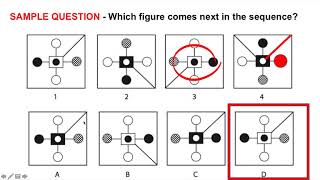
Raven's Matrices Practice Quiz
Complete all 5 puzzles, record your answers (A–H), then reveal explanations below. Work through each pattern methodically — isolate one attribute at a time and eliminate wrong options before committing to an answer.
Boolean Operators on Binary Values
Apply the Boolean operator shown to each binary value. Write your answer in binary only — do not convert to decimal. Submit each answer individually and receive immediate step-by-step feedback.
Binary (Base 2)
Uses only 0 and 1. Each position is a power of 2 (1, 2, 4, 8, 16, 32, 64, 128 from right to left).
11000000 = 128+64 = 192
10101000 = 128+32+8 = 168
Hexadecimal (Base 16)
Digits: 0-9 then A=10, B=11, C=12, D=13, E=14, F=15. Each hex digit = 4 binary bits.
0xC0 = 12×16 + 0 = 192
0xA8 = 10×16 + 8 = 168
FF   = 255 = 11111111 binary
Octal (Base 8)
Uses 0-7. Each octal digit = 3 binary bits. Critical for Unix permissions.
chmod 755 = rwxr-xr-x
7 = 111 (rwx), 5 = 101 (r-x)
Conversion Quick Reference
Decimal → Binary: repeatedly divide by 2, read remainders bottom-up. Decimal → Hex: divide by 16, convert remainders to hex digits. Binary → Hex: group 4 bits, convert each group.
Quick Reference — What This Quiz Covers
Use this as a study guide before attempting the quiz. Each topic area below maps directly to question categories in the practice set.
Binary ↔ Decimal
Each binary position is a power of 2, from right to left: 1, 2, 4, 8, 16, 32, 64, 128...
1101₂ = 1×8 + 1×4 + 0×2 + 1×1 = 13₁₀
101101₂ = 32+8+4+1 = 45₁₀
To convert decimal → binary: repeatedly divide by 2 and read remainders from bottom to top.
Binary ↔ Octal
Group binary digits in sets of 3 from the right. Each group of 3 bits = one octal digit (0–7).
101110₂ → 101 | 110 → 5 | 6 → 56₈
732₈ → 7=111, 3=011, 2=010 → 111011010₂
Decimal ↔ Hex
Hex digits: 0–9 then A=10, B=11, C=12, D=13, E=14, F=15. Each hex digit = 4 binary bits.
0x3A = 3×16 + 10 = 58₁₀
0xFE = 15×16 + 14 = 254₁₀
0x9F = 1001 1111₂
Decimal ↔ Octal
100₁₀ ÷ 8 = 12r4 → 12÷8=1r4 → 1÷8=0r1 → 144₈
Decimal 100 = Octal 144
Truth Tables for All 7 Gates Tested
AND:  1&1=1  1&0=0  0&0=0   (both must be 1)
OR:   1|1=1  1|0=1  0|0=0   (at least one must be 1)
XOR:  1⊕1=0  1⊕0=1  0⊕0=0  (exactly one must be 1)
NOT:  ¬1=0   ¬0=1            (flip the bit)
NAND: ¬AND: 1&1→0, all others→1
NOR:  ¬OR:  0|0→1, all others→0
Compound Expressions
(x AND y) OR (x XOR y)  with x=1, y=0:
  AND = 1&0 = 0
  XOR = 1⊕0 = 1
  0 OR 1 = 1  ✓
NOT x where x=0: ¬0 = 1. x and not y where x=True, y=False: True and True = True.
Types of Matrix Rules in This Quiz
- Progression: Count of filled squares increases or decreases by 1 per row
- Consistency: Every cell in every row/column is identical (e.g., all diamonds)
- Alternation: Checkerboard shading, filled/empty alternation, bullseye/hollow alternation
- Rotation: Arrow or shape rotates by a fixed angle (90° clockwise) per column
- Numeric progression: Numbers increase by 1 across rows and columns
- Letter progression: Alphabet sequence across cells (A→B→C→D→E)
For Loop with range()
for i in range(2, 6):
    print(i, end=" ")
# Output: 2 3 4 5  (stops before 6, on same line)
While Loop
x = 1
while x < 4:
    print(x, end=" ")
    x += 1
# Output: 1 2 3  (exits when x=4, condition False)
Conditional with Boolean
a, b = 3, 5
if a < b and b < 10:
    print("OK")   # Output: OK (both conditions True)
Boolean Expression
x = True; y = False
x and not y  # True and True = True
Linear Search
Checks each item sequentially from the start until found or exhausted. Works on unsorted data. Time complexity: O(n). Best for small or unsorted lists.
Binary Search
Requires a sorted list. Divides the search space in half each step by comparing the target to the middle element. Time complexity: O(log n).
Interpolation Search
Estimates the target position based on value distribution. Performs best on uniformly distributed sorted data. Can achieve O(log log n) in ideal conditions.
Key Distinction
- Compiled (Go, C, C++): Source code → machine code at compile time. Platform-specific binary. Generally faster at runtime. Must recompile for each architecture.
- Interpreted (Python, JavaScript, PHP): Executed line-by-line by an interpreter at runtime. Platform-independent (given an interpreter). Slower but more portable.
- JIT-compiled (Java, C#): Compiled to intermediate bytecode, then to machine code at runtime.
print("Ready")   # Python syntax — interpreted
cout << "Ready"; // C++ syntax — compiled
fmt.Print("Ready") // Go syntax — compiled
Write-Output "Ready" // PowerShell — interpreted
Core Boolean Operations
- AND (•): Output is 1 only when BOTH inputs are 1. Used in subnet masking.
- OR (+): Output is 1 when AT LEAST ONE input is 1. Used in access rule matching.
- NOT (¬): Inverts the input. 0→1, 1→0. Used in negation rules (deny ≠ permit).
- XOR (⊕): Output is 1 when inputs DIFFER. Used in cryptography and checksums.
Truth Tables
AND:     OR:      XOR:     NOT:
A B Out  A B Out  A B Out  A Out
0 0  0   0 0  0   0 0  0   0  1
0 1  0   0 1  1   0 1  1   1  0
1 0  0   1 0  1   1 0  1
1 1  1   1 1  1   1 1  0
Subnetting Uses Boolean AND
IP:    192.168.10.5  → 11000000.10101000.00001010.00000101
Mask:  255.255.255.0 → 11111111.11111111.11111111.00000000
AND =  192.168.10.0  → 11000000.10101000.00001010.00000000
Result: Network address = 192.168.10.0
Why Analysts Need Basic Programming
You don't need to be a developer, but you must be able to read scripts, understand what they do, and recognize when code is malicious. Scripts are used in automation, malware, incident response, and tool configuration.
Variables & Data Types
port = 443          # integer
service = "HTTPS"   # string
is_open = True      # boolean
Conditionals (if/elif/else)
if port == 22:
    print("SSH — encrypted terminal access")
elif port == 80:
    print("HTTP — unencrypted web")
else:
    print("Unknown port")
Loops
ports = [22, 80, 443, 3389]
for p in ports:
    if p == 3389:
        print("RDP detected — verify authorization")
Functions
def classify_port(p):
    known = {22:"SSH", 80:"HTTP", 443:"HTTPS", 3389:"RDP"}
    return known.get(p, "Unknown")
The 7 Layers (Remember: All People Seem To Need Data Processing)
- Layer 7 — Application: User-facing protocols. HTTP, HTTPS, DNS, SMTP, FTP, SSH, RDP, SNMP. PDU: Data.
- Layer 6 — Presentation: Data formatting, encryption, compression. TLS/SSL operates here. JPEG, MPEG. PDU: Data.
- Layer 5 — Session: Establishes, manages, and terminates sessions. NetBIOS, RPC, SQL sessions. PDU: Data.
- Layer 4 — Transport: End-to-end delivery, error correction, flow control. TCP (reliable) and UDP (fast). PDU: Segment (TCP) / Datagram (UDP).
- Layer 3 — Network: Logical addressing and routing. IP, ICMP, OSPF, BGP. Device: Router. PDU: Packet.
- Layer 2 — Data Link: Physical addressing (MAC), frame delivery on same network. Ethernet, 802.11 (Wi-Fi). Device: Switch. PDU: Frame.
- Layer 1 — Physical: Electrical/optical signals, cables, connectors. PDU: Bits.
Common Exam Mappings
- Switch operates at Layer 2 (uses MAC addresses)
- Router operates at Layer 3 (uses IP addresses)
- Hub operates at Layer 1 (no intelligence — broadcasts to all ports)
- Firewall typically operates at Layer 3–4 (stateful inspection) or Layer 7 (application-aware)
TCP Three-Way Handshake (Layer 4)
- SYN → Client sends synchronize request
- SYN-ACK → Server acknowledges and synchronizes
- ACK → Client acknowledges; connection established
The interactive explorer below lets you click any component to see its role, key details, and security or forensic relevance in depth.

Core Computing & Storage
This module covers the foundational computing concepts tested on the CBTP exam and in entry-level IT interviews: processor architectures, memory types, storage hierarchy, hardware structures, and device drivers. Understanding these concepts lets you reason about system performance, forensics, and security at the hardware level.
RISC — Reduced Instruction Set Computing
RISC processors execute a small, highly optimized set of instructions, each completing in a single clock cycle. This simplicity allows for a large number of registers, a highly regular instruction pipeline, and a low number of clock cycles per instruction.
- Instructions are simple and fixed-length — hardware stays small and fast
- LOAD and STORE are separate, independent instructions — all computation happens register-to-register
- Low cycles per second but large code sizes (more instructions needed per task)
- Spends more transistors on memory registers rather than decoding complex instructions
- Decodes starting at the lowest-addressed byte of the instruction (invariant endianness)
- Examples: ARM (phones/tablets), MIPS, RISC-V, SPARC, PowerPC
CISC — Complex Instruction Set Computing
CISC processors support a large, complex instruction set — individual instructions can perform multi-step operations that would require several RISC instructions.
- Instructions can take multiple clock cycles to complete
- LOAD and STORE are incorporated directly into instructions — memory-to-memory operations supported
- Small code sizes (one instruction does more) but high cycles per second
- Transistors used for storing and decoding complex instructions rather than extra registers
- Examples: x86 (Intel/AMD desktop and server processors)
SPARC — Scalable Processor Architecture
- 32-bit and 64-bit open microprocessor architecture developed by Sun Microsystems
- Based on RISC design principles
- Purely Big-endian — the most significant byte (MSB) is stored at the smallest memory address
- Commonly found in servers and workstations; now maintained by Oracle
Big-endian: MSB stored at the smallest address. Example: 0x1234 stored as
12 34. Used by SPARC, network protocols (TCP/IP).Little-endian: LSB stored at the smallest address. Example: 0x1234 stored as
34 12. Used by x86 (Intel/AMD).Memory trick: Big/M/Small (Big-endian, Most-significant, smallest address) | Little/L/Small (Little-endian, Least-significant, smallest address)
x86 (32-bit)
- Based on CISC computing — Intel and AMD processors
- Maximum addressable RAM: 4 GB (2³² = 4,294,967,296 bytes)
- Purely Little-endian byte order
- Still common in legacy embedded systems and some IoT devices
x64 (64-bit) — Also called x86-64 or AMD64
- Backward-compatible extension of x86 — runs 32-bit software
- Supports more than 4 GB of RAM (theoretically 16 exabytes, practically limited by OS/motherboard)
- Larger register size enables faster processing of larger data values
- Required for modern operating systems, security features (DEP, ASLR), and virtualization
Hardware
The physical components of a computer system — CPU, RAM sticks, hard drives, motherboard, network cards, cables, etc. You can touch hardware. It cannot be changed without physical replacement or upgrade.
Software
The programs and operating information used by a computer. Software runs on top of hardware and instructs it what to do. Examples: operating systems (Windows, Linux), applications (browser, antivirus), scripts. Software can be installed, updated, or removed without physical changes.
Firmware
Permanent software programmed into read-only memory (ROM, EEPROM, or flash). It bridges hardware and software — it is the lowest-level software that tells hardware how to boot and operate. Examples: BIOS/UEFI (boots the OS), hard drive controller firmware, router firmware.
- Firmware persists when the device is powered off
- Typically updated less frequently than software
- Firmware-level malware (rootkits) is extremely difficult to detect or remove — survives OS reinstalls
Hard Disk Drive (HDD) Components
- Platters — Rigid disks coated with magnetic material that spin at high speed (5400–15000 RPM). Each platter has a top and bottom recording surface, with its own pair of read/write heads. One HDD may contain several platters.
- Tracks — Concentric circular paths on the surface of each platter where data is organized.
- Sectors — The smallest subdivision of a track. Each sector stores a fixed amount of user-accessible data — typically 512 bytes. This is the minimum storage unit of a hard drive. The read/write head detects changes in magnetization to read/write binary data bits.
- Actuator Arms — Move the read/write heads across the platter surface to access different tracks.
Partitions vs Logical Storage
- Partitions — A logical section of a physical storage device that is separated from other segments. Allows a single drive to be treated as multiple independent volumes. Any partition may be mounted except those marked as startup disks.
- Logical Storage — A virtual space/device that does not exist as a physical entity. Includes partitions, logical disks, logical volumes, and virtual disks. Makes a portion of a drive function like a separate physical device.
- Physical Storage — The actual hardware: HDDs, SSDs, magnetic tape, etc.
Inodes (Unix/Linux)
Inodes are data structures in Unix-like file systems that describe a file-system object (file or directory). They store critical metadata about files:
- File size and type
- User and group ownership
- Access mode (read/write/execute permissions)
- Timestamps (created, modified, accessed)
- Pointers to the data blocks on disk
Important: inodes store metadata about files, not the file contents themselves. The filename is stored in the directory, not the inode.
Primary Storage (RAM)
The only storage directly accessible by the CPU. Programs must be loaded into RAM before the CPU can execute them. Primary storage is volatile — contents are lost when power is removed. Fast access, limited capacity.
Secondary Storage
Non-volatile storage not directly accessible by the CPU — data must be loaded into RAM first. Includes HDDs, SSDs, USB drives, floppy disks, and magnetic tape. Much larger capacity than RAM but slower. Formatted according to a file system (NTFS, ext4) which provides structure for files, directories, and metadata.
Memory Paging (Virtual Memory)
When RAM is full, the OS uses memory paging as a form of virtual memory — it moves the least-recently-used chunks of RAM to secondary storage to free up space for active processes.
- Windows: stored in
pagefile.sys - Unix/Linux: stored in a dedicated swap partition or swap file
- Trade-off: increases effective memory capacity at the cost of performance (disk access is much slower than RAM)
Order of Volatility (Forensics — Most to Least Volatile)
During incident response, collect evidence starting with the most volatile sources first, or that evidence is gone when power is cut:
- 1. Registers — CPU registers (lost instantly on power-off)
- 2. Cache — CPU L1/L2/L3 cache
- 3. RAM / ROM — Running processes, network connections, ARP cache, routing tables, kernel statistics
- 4. Temporary Filesystems — /tmp, Windows %TEMP%
- 5. HDD / SSD — Disk images, log files, installed applications
- 6. Remote Logging / Monitoring Data — Syslog servers, SIEM data relevant to the system
- 7. Physical Configuration / Network Topology — Network diagrams, switch configs
- 8. External / Archival Media — USB drives, magnetic tape, backups (least volatile)
What Is a Device Driver?
A device driver is a computer program that operates or controls a specific type of device attached to a system. It provides a software interface to hardware devices, enabling the operating system and applications to use hardware functionality without needing to know the hardware implementation details.
- Acts as a translator between the OS and the hardware
- Runs in kernel mode (high privilege) — driver vulnerabilities can lead to full system compromise
- Examples: graphics driver (GPU), audio driver, keyboard/mouse driver, USB controller driver
Network Drivers
A network driver is a device driver that enables a network interface card (NIC) to communicate between the computer, the operating system, and other network devices. Without a functioning network driver, the NIC cannot send or receive packets — even if the hardware is physically connected.
- Controls how packets are transmitted and received at the hardware level
- Interacts with the OS network stack above it and the NIC hardware below it
- Missing or outdated network drivers are a common cause of connectivity issues after OS reinstalls
dmesg | grep -i error for driver load failures.Architecture Comparison Table
- RISC — Simple fixed instructions, single clock cycle, register-to-register ops, ARM/MIPS, invariant endianness
- CISC — Complex multi-clock instructions, memory-to-memory ops, small code size, x86/AMD64
- SPARC — RISC-based, Sun/Oracle, 32/64-bit, purely Big-endian
- x86 — CISC, max 4 GB RAM, Little-endian, Intel/AMD 32-bit
- x64 — Extension of x86, more than 4 GB RAM, backward compatible
Endianness Quick Reference
- Big-endian: MSB at lowest address → SPARC, network byte order (TCP/IP)
- Little-endian: LSB at lowest address → x86/x64 (Intel, AMD)
Storage Hierarchy (Fastest → Slowest / Most Volatile → Least)
- Registers → Cache → RAM → SSD/HDD → External Media → Archival Tape
Common Exam Traps
- x86 = 32-bit = max 4 GB RAM. x64 = 64-bit = more than 4 GB RAM.
- Primary storage = RAM (fast, volatile). Secondary = disk (slow, non-volatile).
- Firmware lives in ROM — survives power cycles. Targeted by advanced persistent threats.
- Inodes store metadata, not file content. Filenames are in the directory, not the inode.
- Sectors = 512 bytes minimum storage unit. Platters are the physical disks inside HDDs.
- Paging extends RAM using disk space at the cost of performance (pagefile.sys / swap).
Traditional SysV Runlevels
- 0 — Halt (shutdown)
- 1 — Single-user mode (maintenance, no network)
- 2 — Multi-user mode, no NFS (networking varies by distro)
- 3 — Full multi-user, CLI only, networking enabled
- 4 — Unused / customizable
- 5 — Full multi-user with GUI (X11)
- 6 — Reboot
systemd Targets (Modern Linux)
- poweroff.target → Runlevel 0
- rescue.target → Runlevel 1 (single-user)
- multi-user.target → Runlevel 3 (CLI)
- graphical.target → Runlevel 5 (GUI)
- reboot.target → Runlevel 6
Key Commands
systemctl get-default          # show current default target
systemctl set-default multi-user.target  # change default
systemctl isolate rescue.target          # switch now
runlevel                                 # show current runlevel
init 3                                   # switch to runlevel 3 (legacy)
Boot Stages
- 1. POST/BIOS/UEFI: Hardware self-test; locates bootable device
- 2. MBR/GPT: First sector of boot disk; hands control to bootloader. MBR = 512 bytes; GPT supports larger disks.
- 3. GRUB: Loads kernel and initial RAM disk (initrd/initramfs) from /boot
- 4. Kernel: Initializes hardware, mounts root filesystem, launches first process
- 5. Init / systemd: PID 1. Brings up services and reaches target runlevel
Key Files
- /boot/grub/grub.cfg — GRUB configuration
- /etc/inittab — Legacy SysV default runlevel
- /etc/systemd/system — systemd unit files
- /var/log/boot.log — Boot messages
dmesg                  # kernel ring buffer messages
journalctl -b          # all messages from current boot
journalctl -b -1       # messages from previous boot
The interactive diagram below walks you through each stage of the Unix/Linux boot process. Click any step to see exactly what runs, which files are involved, how to inspect it with command-line tools, and how attackers exploit each phase for persistence.

Unix Logs
Why Logging Matters
Logs are the authoritative record of system activity. Effective log reading, filtering, and retention help you
troubleshoot quickly, verify events, and support post-incident analysis.
Traditional Log Files (rsyslog/syslogd)
/var/log/syslog (Debian/Ubuntu) or /var/log/messages (RHEL/CentOS) — general system activity
/var/log/auth.log (Debian) or /var/log/secure (RHEL) — authentication events
/var/log/kern.log — kernel messages
/var/log/boot.log — boot messages
/var/log/cron or cron.log — scheduled task activity
/var/log/faillog — failed login attempts (summary database)
Example: Quick file-based checks
# tail the last lines of a log:
$ sudo tail -n 100 /var/log/auth.log
# follow a file in realtime:
$ sudo tail -f /var/log/syslog
# show only today's entries (GNU date help):
$ sudo awk -v d="$(date '+%b %e')" '$0 ~ d {print}' /var/log/syslog
Log Rotation (logrotate)
Traditional text logs grow over time. logrotate rotates, compresses, and prunes log files to control disk
growth and preserve history.
Example: logrotate basics
Configs:
/etc/logrotate.conf
/etc/logrotate.d/* (per-service snippets)
Common directives:
weekly # rotate once per week
rotate 4 # keep 4 archives
compress # gzip old logs
size 50M # rotate when file reaches 50 MB
create 0640 root adm # create new file with given mode/owner/group
Manual run (debug, no changes):
$ sudo logrotate -d /etc/logrotate.conf
Force run:
$ sudo logrotate -f /etc/logrotate.conf
systemd Journal (journald + journalctl)
journald stores logs in a binary format. journalctl reads and filters them by boot, time, unit (service), and
priority.
Priority levels (lower = more severe)
0: emerg 1: alert 2: crit 3: err
4: warning 5: notice 6: info 7: debug
Tip: -p err → err..emerg
-p warning..alert → a range
Core journalctl Filters
Current boots:
$ journalctl -b
$
Follow logs in realtime (like tail -f):
$ journalctl -f
Filter by unit (service) & priority:
$ journalctl -u ssh -p err
Time windows:
$ journalctl --since "2025-10-02 08:00" --until "2025-10-02 12:00" $ journalctl --since "1
hour ago"
Built-in grep matching:
$ journalctl -b -g "failed"
Kernel messages (current boot):
$ journalctl -k
Check failed units at a glance:
$ systemctl --failed
Journal Persistence & Retention
Persistence: Ensure /var/log/journal/ exists, or set Storage=persistent in
/etc/systemd/journald.conf.
Retention: Limit disk use via SystemMaxUse= (e.g., 1G) or vacuum with journalctl
--vacuum-size=… / --vacuum-time=….
Apply changes:sudo systemctl restart
systemd-journald.
Example: Persistence + size cap
# 1) Make logs persistent if not already:
$ sudo mkdir -p /var/log/journal
# 2) In /etc/systemd/journald.conf set:
Storage=persistent
SystemMaxUse=1G
# 3) Restart daemon:
$ sudo systemctl restart systemd-journald
# 4) Optional immediate trim:
$ sudo journalctl --vacuum-size=1G
# 5) Verify disk usage and boots:
$ journalctl --disk-usage
$ journalctl --list-boots
Exporting & Sharing Logs
For incident review or support tickets, export specific slices instead of entire logs.
Export SSH errors from the last 2 hours to a file:
$ journalctl -u ssh -p err --since "2 hours ago" --no-pager > ssh_errors.txt
Export a single boot to JSON (machine-parsable):
$ journalctl -b -o json > boot.json
Example: Redaction & context
- Sanitize usernames/IPs when sharing logs externally.
- Include time window, hostname, and distro to help others reproduce.
Considerations
Know both ecosystems: file-based logs and the journal coexist on many systems.
Filter aggressively to cut noise: boot, time, unit, priority, and patterns.
Retention matters: plan rotation (text) and vacuum policies (journal) to prevent disk pressure.
Permissions: many logs require sudo to read; respect privacy and policy when exporting.
Key Takeaways
Logs are ground truth—triage starts with tight filters.
journalctl + systemctl --failed give a fast post-boot health snapshot.
Persistence and size limits determine how far back you can investigate.
Common Student Challenges & Fixes
Challenge: Running plain journalctl and drowning in output.
Fix: Always add filters: -b, -u <unit>, -p err, --since/--until, or -g "pattern".
Challenge: Logs vanish after reboot.
Fix: Enable persistence (/var/log/journal or Storage=persistent) and set sane limits (SystemMaxUse=,
periodic vacuum).
Challenge: Unsure where auth failures are recorded.
Fix: Check /var/log/auth.log (Debian) or /var/log/secure (RHEL), or query via journalctl
-u ssh with time/priority filters.
User and Authentication Files
Why User Management Matters
Every action on a Unix/Linux system executes under a user identity. User and group configurations define
access rights, enforce separation of duties, and ensure accountability.
Key Files
/etc/passwd — user account information (UID, GID, home directory, shell)
/etc/shadow — password hashes, accessible only by privileged accounts
/etc/group — group memberships
/etc/gshadow — secure group password information
Worked Example: /etc/passwd entry
alice:x:1001:1001:Alice Example:/home/alice:/bin/bash
- Username: alice
- Password placeholder: x → real hash in /etc/shadow
- UID: 1001
- GID: 1001
- Home: /home/alice
- Shell: /bin/bash
Command Examples
Display current user identity:
$ id
Query user database (example for user alice):
$ getent passwd alice
Add user alice to the sudo group:
$ sudo usermod -aG sudo alice
View the contents of the user account database:
$ cat /etc/passwd
Considerations
User account data and password hashes are split across /etc/passwd and /etc/shadow for security.
/etc/shadow permissions protect password hashes from unauthorized access.
Group assignments are critical for defining access control boundaries.
Key Takeaways
Core identity files define user access and authentication.
/etc/shadow is restricted to privileged users only.
Proper group management enforces least privilege and prevents misconfigurations.
Challenge: Explore user and group configuration files safely. Work through prompts, then expand for
Common Student Challenges & Fixes
Challenge: Confusing /etc/passwd with /etc/shadow.
Fix: Remember: /etc/passwd holds IDs and shells, while /etc/shadow holds password hashes (privileged-
only).
Challenge: Forgetting to use -a when adding a user to a group.
Fix: Always use usermod -aG; without -a, you overwrite existing group memberships.
Challenge: Misunderstanding default groups.
Fix: The GID in /etc/passwd is the primary group; additional groups are listed in /etc/group.
Why Filesystems Matter
Every file, directory, and device on a Unix system lives within a filesystem. Understanding how filesystems are structured, mounted, and managed is essential for administration, troubleshooting, and security analysis.
Common Unix/Linux Filesystem Types
| Filesystem | Description | Common Use |
|---|---|---|
| ext4 | Fourth Extended Filesystem — journaling, supports large files (up to 16 TB) | Default on most Linux distros (Ubuntu, Debian) |
| XFS | High-performance journaling filesystem; excellent for large files and parallel I/O | Red Hat/CentOS/RHEL default; large storage arrays |
| Btrfs | Copy-on-write with snapshots, checksums, and RAID support built in | Fedora, SUSE; snapshot and integrity workflows |
| tmpfs | RAM-based filesystem; data is volatile and lost on reboot | /tmp, /run |
| proc | Virtual filesystem exposing kernel process information | /proc — kernel parameters and process data |
| sysfs | Virtual filesystem exposing device and driver information | /sys — hardware and driver interaction |
Mounting Filesystems
Mounting attaches a filesystem to a directory (mount point) in the filesystem tree.
$ sudo mount /dev/sdb1 /mnt/data          # mount a block device
$ sudo umount /mnt/data                    # unmount gracefully
$ mount | grep sdb                         # show active mounts
$ sudo mount -o remount,ro /mnt/data       # remount read-only
/etc/fstab — Persistent Mounts
Filesystems listed in /etc/fstab mount automatically at boot. Each line has 6 fields:
# Device/UUID          Mount Point   Type    Options            Dump  Pass
UUID=a1b2-c3d4         /             ext4    defaults,noatime   0     1
UUID=e5f6-g7h8         /boot         ext4    defaults           0     2
UUID=i9j0-k1l2         /home         ext4    defaults           0     2
tmpfs                  /tmp          tmpfs   defaults,noexec    0     0
Fields: device (UUID preferred) | mount point | filesystem type | options | dump (0=no backup) | pass (0=skip fsck, 1=root, 2=others)
noexec on /tmp and world-writable mounts to prevent execution of dropped payloads. Use nosuid to disable setuid on shared mounts.Disk Usage & Block Device Commands
$ df -h                          # filesystem usage (human-readable)
$ df -h /home                    # usage for a specific mount point
$ lsblk                          # list block devices in tree format
$ lsblk -f                       # include filesystem type and UUID
$ blkid /dev/sda1                # show UUID and filesystem type
$ du -sh /var/log/               # total size of a directory
$ du -sh /var/log/*              # size of each item in directory
Creating & Checking Filesystems
$ sudo mkfs.ext4 /dev/sdb1       # format partition as ext4
$ sudo mkfs.xfs /dev/sdb1        # format partition as XFS
$ sudo e2fsck -f /dev/sdb1       # check/repair ext4 (device must be unmounted)
$ sudo tune2fs -l /dev/sda1      # display ext4 superblock metadata
Key Considerations
- Use UUIDs in
/etc/fstab— device names like/dev/sdbcan change between reboots. - Always unmount before running
fsckormkfs— operating on a mounted filesystem causes corruption. - /proc and /sys are virtual — they have no physical disk backing and are rebuilt each boot.
- Security analysts use
df -handdu -shto detect disk exhaustion from log flooding, data staging, or ransomware activity.
Key Takeaways
ext4 is the Linux default; XFS and Btrfs serve high-performance and snapshot use cases. Use /etc/fstab with UUIDs for reliable persistent mounts. Master df -h, lsblk, and blkid to understand disk layout at a glance.
The interactive explorer below lets you click any component to see its role, key details, and security or forensic relevance in depth.
| Octal | Binary | Symbolic | Meaning |
|---|---|---|---|
| 7 | 111 | rwx | Read, write, execute |
| 6 | 110 | rw- | Read and write |
| 5 | 101 | r-x | Read and execute |
| 4 | 100 | r-- | Read only |
| 3 | 011 | -wx | Write and execute |
| 2 | 010 | -w- | Write only |
| 1 | 001 | --x | Execute only |
| 0 | 000 | --- | No permissions |
755 (rwxr-xr-x) for executables/dirs · 644 (rw-r--r--) for regular files · 600 (rw-------) for SSH keys · 777 (rwxrwxrwx) — avoid in productionchmod 755 script.sh # set rwxr-xr-x (octal) chmod 644 notes.txt # set rw-r--r-- (octal) chmod 600 ~/.ssh/id_rsa # private key: owner read/write only chmod +x script.sh # add execute bit for all chmod u+w file.txt # add write for owner (u=user) chmod g-w file.txt # remove write from group chmod o-r file.txt # remove read from others chmod a+r file.txt # add read for all (a=all: ugo) chmod -R 755 /var/www/html # recursive: apply to directory tree
Symbolic form: u=user/owner, g=group, o=others, a=all · Operators: + add, - remove, = set exactly
chown alice file.txt             # change owner to alice
chown alice:developers file.txt  # change owner AND group
chown :developers file.txt       # change group only
chown -R www-data /var/www/html  # recursive ownership change
chgrp developers project/        # change group only (alias)
| Bit | Octal | On Files | On Directories | ls display |
|---|---|---|---|---|
| SUID | 4xxx | Runs as file's owner (e.g., passwd runs as root) | No effect | s in owner-x position |
| SGID | 2xxx | Runs as file's group | New files inherit directory's group | s in group-x position |
| Sticky | 1xxx | No modern effect | Only owner/root can delete files inside (used on /tmp) | t in others-x position |
chmod u+s /usr/bin/myapp     # set SUID
chmod g+s /shared/project/   # set SGID on directory
chmod +t /tmp                 # set sticky bit
chmod 4755 /usr/bin/myapp    # SUID + 755 (4=SUID prefix)
chmod 2775 /shared/project/  # SGID + 775 (2=SGID prefix)
chmod 1777 /tmp               # sticky + 777 (1=sticky prefix)
find / -perm -4000 -type f 2>/dev/nullumask defines which permissions are subtracted from newly created files (base 666) and directories (base 777).
umask              # show current mask (typically 0022)
umask 022          # new files = 644, new dirs = 755
umask 027          # new files = 640, new dirs = 750
umask 077          # new files = 600, new dirs = 700 (most private)
umask 022 → files: 666−022=644, dirs: 777−022=755. The default on most systems is 022.cron — Recurring Jobs
cron runs scheduled commands. The crontab format is: min hour day month weekday command
crontab -e              # edit current user's crontab
crontab -l              # list scheduled jobs
crontab -r              # remove all jobs

# Examples:
0 2 * * *  /usr/bin/backup.sh      # Daily at 2am
*/15 * * * * /usr/bin/check.sh     # Every 15 minutes
0 0 * * 0  /usr/bin/weekly.sh      # Every Sunday midnight
Cron Field Values
- * = any value, */n = every n units, a-b = range, a,b = list
- System cron: /etc/crontab, /etc/cron.d/, /etc/cron.daily/
at — One-Time Jobs
at 3pm tomorrow         # schedule interactive job
at now + 2 hours        # 2 hours from now
atq                     # list pending jobs
atrm 3                  # remove job #3
grep -r "" /etc/cron*Key Configuration Files
- ~/.bashrc — Executed for every interactive non-login shell. Set aliases, functions.
- ~/.bash_profile or ~/.profile — Executed for login shells. Set PATH and environment variables.
- /etc/profile — System-wide login configuration
- /etc/bash.bashrc — System-wide interactive shell configuration
Common Variables
echo $PATH          # show executable search path
echo $HOME          # user home directory
echo $USER          # current username
echo $SHELL         # current shell binary
echo $PS1           # prompt string
printenv            # show all environment variables
env                 # show all variables and run commands
Setting Variables
export MYVAR="value"        # set and export to child processes
PATH="$PATH:/new/dir"       # append to PATH
alias ll="ls -la"           # create shortcut
source ~/.bashrc            # reload configuration
sudo & Privilege Escalation
sudo command              # run as root
sudo -u alice command     # run as specific user
sudo -l                   # list allowed commands
/etc/sudoers              # sudo policy file (edit with visudo)
SSH Hardening
- Disable password auth, use key-based only:
PasswordAuthentication noin /etc/ssh/sshd_config - Disable root login:
PermitRootLogin no - Change default port:
Port 2222 - Allow specific users:
AllowUsers alice bob
File Integrity
md5sum file.txt             # compute hash
sha256sum file.txt          # stronger hash
tripwire --check            # check against baseline
Audit Log (auditd)
aureport --summary          # audit summary
ausearch -x sudo            # search for sudo events
auditctl -l                 # list audit rules
visudo with least privilege — grant only the specific commands each user needs, log all sudo usage, and use NOPASSWD sparingly.Common Unix Service Ports
- 22 TCP — SSH (Secure Shell) — encrypted remote access and file transfer (SCP/SFTP)
- 23 TCP — Telnet — unencrypted remote access (legacy/insecure)
- 25 TCP — SMTP — outbound email
- 53 UDP/TCP — DNS — name resolution
- 80 TCP — HTTP — web traffic
- 111 TCP/UDP — rpcbind/portmapper — NFS prerequisite
- 123 UDP — NTP — time synchronization
- 143 TCP — IMAP — email retrieval
- 443 TCP — HTTPS — encrypted web
- 514 UDP — Syslog — log forwarding
- 873 TCP — rsync — file synchronization
- 2049 TCP/UDP — NFS — Network File System
- 3306 TCP — MySQL/MariaDB
- 5432 TCP — PostgreSQL
- 6379 TCP — Redis
- 8080/8443 TCP — Alternative HTTP/HTTPS (app servers)
Windows Boot Process
Why the Boot Process Matters
The Windows boot sequence is a chain of steps that prepares the operating system for use. Understanding
the process helps with troubleshooting startup issues, malware persistence, and forensic investigations.
Stages of the Boot Process
- Power-On Self Test (POST)
Performed by the BIOS/UEFI firmware.
Checks CPU, RAM, and hardware components.
Hands control to the bootloader.
- Windows Boot Manager (bootmgr)
Located in the EFI System Partition (ESP) for UEFI, or MBR for legacy systems.
Loads the Boot Configuration Data (BCD) store.
- Boot Configuration Data (BCD)
Replaces legacy boot.ini.
Defines installed OSes, boot parameters, recovery options.
Stored at: \EFI\Microsoft\Boot\BCD (UEFI systems).
- Windows Loader (winload.exe)
Loads essential drivers for disk, CPU, and file system.
Loads the Windows kernel (ntoskrnl.exe).
- Kernel Initialization
Initializes hardware abstraction layer (HAL).
Loads SYSTEM hive from C:\Windows\System32\config\SYSTEM.
Starts core services and Session Manager (smss.exe).
- Logon Phase
winlogon.exe handles logon interface.
lsass.exe (Local Security Authority) — Processes authentication.
User profile loaded from NTUSER.dat.
Boot Process Files & Components
bootmgr — Boot Manager, hands off to OS loader.
BCD store — Boot configuration database.
winload.exe — OS loader, brings kernel and drivers into memory.
ntoskrnl.exe — Windows kernel.
hal.dll — Hardware Abstraction Layer.
smss.exe — Session Manager Subsystem.
winlogon.exe — Handles logon UI.
lsass.exe — Enforces security and authentication.
Key Registry Locations
HKLM\SYSTEM\CurrentControlSet\Control\Session Manager — Boot-time commands and subsystems.
HKLM\SYSTEM\CurrentControlSet\Services — Drivers and services loaded at boot.
HKLM\SOFTWARE\Microsoft\Windows NT\CurrentVersion\Winlogon — Logon process settings.
Quick Commands
View BCD configuration:
bcdedit /enum all
Check system startup logs:
Get-WinEvent -LogName System | Where-Object { $_.Id -in 6005,6006,41 } | Format-List
Key Takeaways
The boot process flows from firmware → bootmgr → BCD → winload → kernel → services → logon.
Critical files: bootmgr, BCD, winload.exe, ntoskrnl.exe, hal.dll.
Registry hives (SYSTEM, SERVICES, WINLOGON) define how startup proceeds.
Corruption or misconfiguration in any stage can prevent startup.
Common Student Challenges & Fixes
Challenge: Confusing BIOS/UEFI POST with Windows boot.
Fix: POST is firmware only; Windows boot begins at bootmgr.
Challenge: Thinking boot.ini still applies.
Fix: Modern systems use the BCD store instead of boot.ini.
Challenge: Misinterpreting logon failures.
Fix: Distinguish between boot-level issues (BCD, SYSTEM hive) and logon-level issues (winlogon.exe,
lsass.exe).
The interactive diagram below walks you through each stage of the Windows boot process. Click any step to see what it does, which files are involved, key forensic relevance, and common failure modes — exactly what you need to troubleshoot startup issues and identify malware persistence.

Windows File System Structure &
Directories
Why File Systems Matter
The Windows file system defines how data is organized, stored, and accessed. Knowing the structure is
essential for:
System Administration — managing files, users, and storage efficiently.
Security — setting permissions, auditing access, detecting unauthorized changes.
Forensics & Troubleshooting — locating critical files, understanding user/system activity.
Windows File System Types
FAT32
Used in older Windows (95/98/XP) and removable media.
Max file size: 4 GB, max partition size: 8 TB.
No modern security features (no NTFS permissions).
NTFS (New Technology File System)
Default for modern Windows (XP → 11, Server 2003 → 2022).
Supports granular file permissions and ACLs, EFS encryption, compression, journaling, and quotas.
Max file size: 16 EB (limited by hardware).
ReFS (Resilient File System)
Introduced in Windows Server 2012.
Optimized for data integrity and large-scale storage.
Does not support some NTFS features like EFS or compression.
Key Windows Directories
Directory Path Purpose
System Root C:\Windows Core OS files, libraries, drivers, utilitie
Program Files C:\Program Files 64-bit apps.
Program Files (x86)C:\Program Files (x86) 32-bit apps on 64-bit systems.
Users C:\Users\<username> User profiles, settings, data.
AppData C:\Users\<username>\AppData Roaming, Local, LocalLow app data.
ProgramData C:\ProgramData App data shared across users.
Temp C:\Windows\Temp or %USERPROFILE%\AppData\Local\TempTemporary files.
System32 C:\Windows\System32 Core system binaries/tools.
SysWOW64 C:\Windows\SysWOW64 32-bit binaries on 64-bit Windows.
Common NTFS File Paths of Interest
Startup Apps:
C:\ProgramData\Microsoft\Windows\Start Menu\Programs\Startup
HKCU\Software\Microsoft\Windows\CurrentVersion\Run (registry key)
System Config / Logs:
C:\Windows\System32\config — registry hives (SAM, SYSTEM, SECURITY)
C:\Windows\Logs — system logs
User Data:C:\Users\<username>\Documents, \AppData
Temp / Cache:%TEMP%, browser and app caches
Key Takeaways
NTFS is the standard Windows file system.
Permissions and ownership control access to files and directories.
Default directories (System32, Users, ProgramData, etc.) each have specific roles.
Understanding paths is critical for admin, security, and forensic work.
Common Student Challenges & Fixes
Challenge: Confusing System32 with SysWOW64.
Fix: System32 is 64-bit binaries; SysWOW64 holds 32-bit compatibility files.
Challenge: Accidentally deleting files from critical directories.
Fix: Avoid manual edits in C:\Windows, System32, or Program Files; use built-in tools or admin consoles.
Challenge: Forgetting hidden folders like AppData.
Fix: Enable “Show hidden files” in File Explorer to view and manage them.
The interactive explorer below lets you click any component to see its role, key details, and security or forensic relevance in depth.

NTFS Permission Types
- Full Control — Read, write, execute, delete, change permissions, take ownership
- Modify — Read, write, execute, delete
- Read & Execute — View and run files
- List Folder Contents — View directory contents (folders only)
- Read — View file contents and attributes
- Write — Create new files/folders, modify content
Permission Evaluation
- Permissions are cumulative — a user gets the highest permission from all their group memberships
- Deny overrides Allow — an explicit Deny always wins
- Inheritance: child objects inherit parent permissions by default
Key Commands
icacls C:\folder /grant UserA:F     # grant Full Control
icacls C:\file.txt                  # view permissions
takeown /f C:\file.txt              # take ownership
cacls C:\folder /e /g Everyone:R    # legacy tool
Local User Files & Authentication
Why Local Authentication Matters
Before a computer joins a domain, Windows relies on local authentication. Accounts, groups, and credentials
are stored on the machine. Knowing where and how this data is stored helps with administration, security, and
troubleshooting standalone or workgroup systems.
Key Local Authentication Files
SAM (Security Accounts Manager) — C:\Windows\System32\config\SAM
Local user and group account database.
Password hashes are stored here (NTLM format).
SYSTEM hive — C:\Windows\System32\config\SYSTEM
System configuration; used together with SAM to access/decrypt stored password hashes.
SECURITY hive — C:\Windows\System32\config\SECURITY
Local security policy, LSA secrets, and cached credentials (enables offline logons).
NTUSER.dat — C:\Users\<username>\NTUSER.dat
User-specific registry settings (desktop, Explorer, application preferences).
Local Authentication Process
- User enters credentials at the logon screen.
- Credentials are checked against the SAM database (with SYSTEM hive context).
- If valid, Windows loads the profile (NTUSER.dat) and applies user settings.
Local User File Structure (Client OS Examples)
Windows XP
Profile path:C:\Documents and Settings\<username>\
Notes: Profile includes Desktop, Favorites, and NTUSER.DAT.
Windows 7
Profile path:C:\Users\<username>\
Notes: Standardized user directory introduced.
Windows 10 / 11
Profile path:C:\Users\<username>\
Notes: Same structure as Windows 7; includes modern app-data folders.
Windows Server 2012 / 2016 / 2022
Profile path:C:\Users\<username>\
Notes: Same layout as modern clients; often combined with roaming profiles in enterprise.
Key Takeaways
Local authentication hinges on three hives: SAM, SYSTEM, and SECURITY—plus per-user
NTUSER.dat.
Modern Windows stores user profiles under C:\Users\<username>\.
Cached credentials allow offline logons for domain users.
Critical hives are locked during normal operation.
Common Student Challenges & Fixes
Challenge: Mixing up SAM vs NTUSER.dat.
Fix: SAM = accounts & hashes; NTUSER.dat = user preferences/settings.
Challenge: Forgetting that SYSTEM is needed with SAM to work with hashes.
Fix: Treat SAM+SYSTEM as a pair for authentication data handling.
Challenge: Not understanding offline logons.
Fix: SECURITY hive stores cached creds enabling logons without DC contact.
Domain Files & Authentication
Why Domain Authentication Matters
In enterprise environments, domain authentication replaces local authentication. Instead of credentials
being stored in the local SAM database, authentication is handled by Active Directory (AD) running on
Domain Controllers (DCs).
This provides:
Centralized identity management
Scalability across thousands of users/devices
Stronger security controls with Kerberos and Group Policy
Auditing & accountability across the enterprise
Domain Authentication Files (Server-Side)
NTDS.dit (Active Directory Database) — C:\Windows\NTDS\ntds.dit
Stores all domain user accounts, groups, computer accounts, and password hashes.
Managed by Active Directory Domain Services (AD DS).
Replicated across all Domain Controllers.
SYSVOL — C:\Windows\SYSVOL\
Stores Group Policy Objects (GPOs) and logon scripts.
Replicated between Domain Controllers.
Kerberos Key Distribution Center (KDC)
Runs as a service on all DCs.
Issues Ticket Granting Tickets (TGTs) and service tickets for authentication.
LSASS (Local Security Authority Subsystem Service)
Validates logons against AD on DCs.
Enforces security policies and manages authentication packages.
Client Interaction with Domain Authentication
When a Windows workstation or member server is joined to a domain:
Local SAM is bypassed (except for cached logons).
Authentication requests go to the Domain Controller.
Credentials are validated using Kerberos (default) or NTLM (fallback).
A cache of domain credentials is stored locally in the SECURITY hive for offline logons.
Key Client Files
C:\Windows\System32\config\SECURITY → Cached domain credentials.
Group Policy applied from SYSVOL to C:\Windows\SYSVOL\domain\Policies.
Authentication Mechanisms in a Domain
Kerberos (Default)
Default since Windows 2000.
Process:
- User logs in with username/password.
- DCʼs KDC validates credentials and issues a Ticket Granting Ticket (TGT).
- The TGT is used to request service tickets for applications and file shares.
Logs/Events:
4768 – TGT requested
4769 – Service ticket requested
4771 – Pre-authentication failure
NTLM (Fallback)
Used if Kerberos fails (legacy apps or workgroup devices).
Less secure; susceptible to relay and pass-the-hash attacks.
Logs/Events:
4624 – NTLM logon
4625 – NTLM logon failure
Domain Authentication by Windows Version
Windows XP / Server 2003
Authentication Files: NTDS.dit, SYSVOL, SAM (for local accounts)
Method:Kerberos primary, NTLM fallback
Notes: First full AD + Kerberos implementation.
Windows 7 / Server 2008 R2
Authentication Files: NTDS.dit, SYSVOL
Method:Kerberos with AES encryption (stronger)
Notes: Introduced more detailed event logging.
Windows 10 / 11 Clients
Authentication Files: Cached creds in SECURITY hive
Method:Kerberos default, NTLM fallback
Notes: Strong hybrid integration with Azure AD.
Windows Server 2012 / 2016 / 2022
Authentication Files: NTDS.dit, SYSVOL, LSASS, KDC
Method:Kerberos with AES + PAC validation
Notes: Modern DCs with AD FS, conditional access, improved replication.
Key Takeaways
Active Directory centralizes authentication through Domain Controllers.
Key domain files: NTDS.dit, SYSVOL, SECURITY (cached creds), LSASS, KDC.
Kerberos is default; NTLM is fallback and weaker.
Different Windows versions refine encryption, logging, and hybrid integration.
Common Student Challenges & Fixes
Challenge: Confusing local vs domain authentication.
Fix: Local uses SAM; domain uses AD with Kerberos/NTLM.
Challenge: Not recognizing cached domain logons.
Fix: Cached credentials in SECURITY hive enable offline sign-ins.
Challenge: Assuming NTLM is secure.
Fix: NTLM is legacy—use Kerberos whenever possible.
Windows Registry Keys
Why the Registry Matters
The Windows Registry is a hierarchical database that stores configuration settings for the operating system,
applications, hardware, and users. Understanding the registry is essential for troubleshooting, security
analysis, and forensic investigations.
Registry Hives
The registry is organized into major sections called hives, each represented by a root key:
HKEY_LOCAL_MACHINE (HKLM)
System-wide configuration and settings.
Includes hardware drivers, services, and installed applications.
Backed by SYSTEM and SOFTWARE hive files in C:\Windows\System32\config\.
HKEY_CURRENT_USER (HKCU)
User-specific settings for the currently logged-on account.
Includes desktop preferences, Explorer, and application settings.
Backed by NTUSER.dat in the userʼs profile folder.
HKEY_CLASSES_ROOT (HKCR)
Associates file types with applications.
Defines COM objects and class registrations.
Derived from HKLM\Software\Classes and HKCU\Software\Classes.
HKEY_USERS (HKU)
Contains all loaded user profiles on the system.
HKCU is a shortcut to one of the HKU subkeys.
HKEY_CURRENT_CONFIG (HKCC)
Dynamic data about current hardware profile.
Generated at boot; not stored on disk.
Common Registry Paths of Interest
Startup Programs
HKLM\Software\Microsoft\Windows\CurrentVersion\Run
HKCU\Software\Microsoft\Windows\CurrentVersion\Run
Password and Security
HKLM\SAM — Security Accounts Manager database.
HKLM\System\CurrentControlSet\Control\Lsa — Local Security Authority settings.
Installed Applications
HKLM\Software\Microsoft\Windows\CurrentVersion\Uninstall
HKCU\Software\Microsoft\Windows\CurrentVersion\Uninstall
Network & Shares
HKCU\Software\Microsoft\Windows\CurrentVersion\Explorer\MountPoints2
HKLM\System\CurrentControlSet\Services\LanmanServer\Shares
System Startup Config
HKLM\SYSTEM\CurrentControlSet\Services — Drivers and services.
HKLM\SYSTEM\CurrentControlSet\Control\Session Manager — Boot-time commands.
Registry Data Types
REG_SZ — String value
REG_DWORD — 32-bit number
REG_QWORD — 64-bit number
REG_BINARY — Raw binary data
REG_MULTI_SZ — Multiple strings
REG_EXPAND_SZ — Expandable string (e.g., containing environment variables)
Key Takeaways
The registry is split into hives (HKLM, HKCU, HKCR, HKU, HKCC).
Each hive maps to specific files like SYSTEM, SOFTWARE, SAM, and NTUSER.dat.
Critical paths include Run keys (startup), Uninstall keys (apps), and Services (drivers).
Misconfigurations can break startup, authentication, or services.
Common Student Challenges & Fixes
Challenge: Editing the registry without a backup.
Fix: Always export keys before modifying them.
Challenge: Confusing HKCU and HKLM.
Fix: HKCU = current user; HKLM = system-wide.
Challenge: Assuming HKCR is independent.
Fix: HKCR is derived from HKLM and HKCU class data.
The interactive explorer below lets you click any component to see its role, key details, and security or forensic relevance in depth.

Windows Logs
Why Windows Event Logging Matters
Event logs provide visibility into system stability, application health, and security. Event IDs are broadly
consistent across versions, while newer systems (Vista → 11, Server 2008 → 2022) add more detail.
Logging Categories and Examples
Legacy Windows (XP → 8, Client)
System Log (Operational Health)
Event ID 6005 — Event Log service started (startup).
Event ID 6006 — Event Log service stopped (clean shutdown).
Event ID 1001 — BugCheck / Blue Screen recorded.
Application Log (App Failures & Service Events)
Event ID 1000 — Application Error (process crash, e.g., iexplore.exe).
Event ID 11707 — Application installation completed (MSI).
Event ID 11724 — Application removal completed.
Security Log (Audit Events)
Event ID 528 — Successful logon (pre-Vista).
Event ID 529 — Failed logon (invalid credentials).
Event ID 538 — User logoff.
Modern Windows (10/11, Client)
System Log
Event ID 41 — Kernel-Power (unexpected shutdown/restart).
Event ID 55 — NTFS corruption detected.
Event ID 219 — Driver failed to initialize.
Application Log
Event ID 1000 — Application Error (crash).
Event ID 1026 — .NET Runtime Error.
Event ID 1002 — Application Hang.
Security Log (Advanced Auditing) ?
Event ID 4624 — Logon success.
Event ID 4625 — Logon failure.
Event ID 4634 — Logoff.
Event ID 4672 — Special privileges assigned.
Event ID 4688 — New process created.
Windows Server (2003 → 2022)
System Log
Event ID 6005/6006 — Event Log service start/stop.
Event ID 7036 — Service entered running/stopped state.
Event ID 2049 — Failover Cluster resource state change.
Application Log (Server Role Health)
Event ID 12288 — AD replication warning.
Event ID 2089 — AD DS database nearing capacity.
Event ID 1311 — AD replication topology issue.
Event ID 1500 — User profile load failure.
Security Log (Enterprise Auditing)
Event ID 4624/4625 — Logon success/failure.
Event ID 4768 — Kerberos TGT requested.
Event ID 4769 — Kerberos service ticket requested.
Event ID 4771 — Kerberos pre-authentication failure.
Event ID 4740 — Account locked out.
Event ID 4670 — Object permissions changed.
Quick Commands
Open Event Viewer:
eventvwr.msc
Query recent Security logon events (PowerShell):
Get-WinEvent -LogName Security -MaxEvents 20 | Where-Object { $_.Id -in
4624,4625,4634,4672,4688 }
Log file locations (modern):
C:\Windows\System32\winevt\Logs\
Flattened Comparison (Key Logs & Event IDs)
System Log
Legacy: 6005 (start), 6006 (stop), 1001 (BugCheck)
Modern: 41 (Kernel-Power), 55 (NTFS), 219 (Driver)
Server: 6005/6006 (start/stop), 7036 (service state), 2049 (cluster)
Application Log
Legacy: 1000 (crash), 11707 (install), 11724 (uninstall)
Modern: 1000 (crash), 1026 (.NET), 1002 (hang)
Server: 12288 (AD replication warning), 2089 (AD nearing capacity), 1311 (AD replication issue), 1500
(profile load failure)
Security Log
Legacy: 528 (logon success), 529 (logon failure), 538 (logoff)
Modern: 4624 (success), 4625 (failure), 4634 (logoff), 4672 (special privileges), 4688 (process
created)
Server: 4624/4625 (logon), 4768/4769 (Kerberos TGT/TGS), 4771 (Kerberos pre-auth failure), 4740
(account lockout), 4670 (permissions changed)
Key Takeaways
System logs track OS, drivers, and service state.
Application logs record app crashes, hangs, and installer events.
Security logs are essential for auditing logons, privileges, and process creation.
Event IDs are consistent across versions, with more detail in modern and server releases.
Common Student Challenges & Fixes
Challenge: Searching the wrong log for a symptom.
Fix: Map issue → correct log (e.g., logons → Security; unexpected shutdown → System).
Challenge: Ignoring Kerberos/NTLM indicators.
Fix: Watch 4768/4769/4771 for Kerberos, and 4624/4625 for logon outcomes.
Challenge: Overlooking driver issues behind app errors.
Fix: Cross-check Application errors with System driver events (e.g., 219) in the same timeframe.
Network
ipconfig                    # basic IP info (IP, mask, gateway)
ipconfig /all               # full config: MAC, DHCP, DNS servers
ipconfig /release           # release current DHCP lease
ipconfig /renew             # renew DHCP lease
ipconfig /flushdns          # clear DNS resolver cache
ping 8.8.8.8                # send 4 ICMP echo packets
ping -t 8.8.8.8             # continuous ping (Ctrl+C to stop)
ping -n 10 8.8.8.8          # send 10 packets
netstat                     # active TCP connections
netstat -a                  # all connections including LISTENING
netstat -n                  # numeric addresses and ports
netstat -o                  # include owning process PID
netstat -ano                # all connections, numeric, with PIDs
nbtstat -a hostname         # NetBIOS name table for remote host
nslookup google.com         # DNS query (default DNS server)
nslookup google.com 8.8.8.8 # DNS query via specific server
System & Process
tasklist                         # all running processes
tasklist /FI "PID eq 1234"       # filter by PID
tasklist /FI "IMAGENAME eq *.exe"# filter by image name
taskkill /PID 1234 /F            # force-kill by PID
taskkill /IM chrome.exe /F       # force-kill by name
net user                         # list all local user accounts
net user Student                 # show account details
systeminfo                       # OS, RAM, NICs, hotfixes
schtasks /query /fo LIST         # list all scheduled tasks
sc query                         # list all services and state
File System
dir                          # list current directory
dir /a                       # include hidden files
dir /s C:\Temp               # recursive listing
tree C:\folder               # ASCII directory tree
tree C:\folder /f            # tree including files
type file.txt                # display file contents
Registry
reg query HKLM\Software\Microsoft\Windows\CurrentVersion\Run
reg query HKCU\Software /v ValueName
Combining Commands
netstat -ano | findstr :443    # find process using port 443
netstat -ano | findstr :3389   # check for RDP connections
tasklist /FI "PID eq 4512"     # identify process from PID
netstat -ano | findstr :443 gets the PID, then tasklist /FI "PID eq [PID]" identifies the process name.Network
ipconfig
ipconfig /all
ipconfig /flushdns
ping 8.8.8.8
ping -t 8.8.8.8
netstat
netstat -a
netstat -ano
nbtstat -a hostname
nslookup google.com
System & Process
tasklist
tasklist /FI "PID eq 1234"
taskkill /PID 1234 /F
net user
net user Student
systeminfo
schtasks /query /fo LIST
sc query
Files
dir
dir /a
tree C:\Users\Student
type notes.txt
Combine
netstat -ano | findstr :443
Network
ip addr                      # show all interfaces (IP, MAC, state)
ip addr show                 # same — explicit subcommand
ip addr show eth0            # show only eth0 interface
ip addr show lo              # show loopback interface
ping 8.8.8.8                 # ping (Linux default: infinite, use Ctrl+C)
ping -c 4 8.8.8.8            # send exactly 4 ICMP packets
ss                           # socket statistics (modern netstat)
ss -t                        # TCP sockets only
ss -u                        # UDP sockets only
ss -l                        # listening sockets only
ss -n                        # numeric addresses/ports
ss -p                        # show owning process (requires sudo)
ss -tuln                     # TCP+UDP listening sockets, numeric
ss -anp                      # all sockets, numeric, with processes
Process & Users
ps                           # processes for current shell
ps aux                       # all processes: user, PID, %CPU, %MEM
ps -ef                       # all processes in full format
id                           # current user UID, GID, groups
id student                   # another user's UID/GID
who                          # who is logged in (terminal, time, IP)
w                            # who's logged in + what they're running
uname                        # kernel name only
uname -r                     # kernel release version
uname -s                     # kernel name
uname -m                     # machine hardware (x86_64)
uname -a                     # all info combined
File System & Permissions
ls                           # list files (no hidden)
ls -l                        # long format (permissions, owner, size)
ls -la                       # long format including hidden files
ls -lh                       # long format, human-readable sizes
chmod 755 file               # set permissions (rwxr-xr-x)
chmod +x script.sh           # add execute bit
chown student:student file   # change owner:group
cat file.txt                 # print file contents
cat /etc/passwd              # view user database
grep "pattern" file          # search for pattern in file
grep -i "pattern" file       # case-insensitive search
df -h                        # filesystem usage, human-readable
du -sh /var/log/             # total size of directory
Security & System
sudo command                 # run command as root
md5sum file.txt              # compute MD5 hash
sha256sum file.txt           # compute SHA-256 hash
systemctl status ssh         # service status + log lines
systemctl start nginx        # start a service
systemctl stop nginx         # stop a service
systemctl list-units         # list all active units
journalctl                   # full system journal
journalctl -u ssh            # journal for specific service
journalctl -n 50             # last 50 entries
Shell Utilities
echo "hello"                 # print text
echo $PATH                   # print environment variable
printenv                     # print all environment variables
export VAR=value             # set environment variable
alias                        # list current aliases
alias ll='ls -la'            # create alias
netstat -ano is ss -anp. For "who's using port 443?" use: ss -tlnp | grep :443. The -p flag requires sudo to see processes owned by other users.Network
ip addr
ip addr show
ip addr show eth0
ping -c 4 8.8.8.8
ss -tuln
ss -anp
Process & Users
ps
ps aux
id
who
w
uname -a
Files & Perms
ls -la
cat notes.txt
grep "alias" .bashrc
df -h
chmod 755 script.sh
Security
sudo systemctl status ssh
md5sum notes.txt
journalctl -n 20
Complete each challenge in order. Type the command in the terminal — challenges auto-detect when you've succeeded.
Complete each challenge in order. Type the command in the terminal — challenges auto-detect when you've succeeded.
ip — Network Interface & Routing
The ip command is the modern replacement for ifconfig and route. It manages interfaces, addresses, routes, and the ARP/neighbor cache.
| Command | Description |
|---|---|
ip addr / ip addr show | Show all interfaces with IP addresses and MACs |
ip addr show eth0 | Show details for a specific interface |
ip route / ip route show | Display the kernel routing table |
ip link / ip link show | Show link-layer info (state, MTU, MAC) |
ip neigh | Show ARP table / neighbor cache |
ip addr show eth0          # interface addresses and MAC
ip route show              # full routing table
ip neigh                   # ARP cache (IP → MAC mappings)
ss — Socket Statistics
ss is the modern replacement for netstat. It queries kernel socket tables directly and is faster and more accurate. Legacy systems still use netstat -tuln (listening ports) and netstat -anp (all connections with PIDs) — exam questions may reference either tool.
| Command | Description |
|---|---|
ss | All established sockets |
ss -t | TCP sockets only |
ss -u | UDP sockets only |
ss -l | Listening sockets only |
ss -n | Numeric output (no DNS/service-name resolution) |
ss -p | Show process name/PID (requires sudo for other users) |
ss -tuln | TCP+UDP, listening only, numeric — most common audit command |
ss -anp | All connections, numeric, with PIDs |
ss -tuln                   # listening TCP/UDP ports (numeric)
ss -tlnp                   # listening TCP, with process names
sudo ss -tlnp | grep :443  # who is listening on port 443
ping — ICMP Connectivity Test
Sends ICMP Echo Requests to test reachability and measure round-trip latency.
ping 8.8.8.8               # send ICMP echoes indefinitely (Linux default)
ping -c 4 8.8.8.8          # send exactly 4 packets then stop
ping -i 0.5 8.8.8.8        # send one packet every 0.5 seconds
ping6 ::1                  # IPv6 loopback ping
traceroute — Path Discovery
Shows each router hop between the local machine and a destination, including round-trip times per hop.
traceroute 8.8.8.8         # trace route using UDP probes (default)
traceroute -n 8.8.8.8      # numeric only — skip reverse DNS lookups (faster)
traceroute -T 8.8.8.8      # TCP-based trace (useful when ICMP is filtered; requires root)
tracepath 8.8.8.8          # alternative; does not require root privileges
dig / nslookup — DNS Queries
dig is the preferred modern tool for DNS lookups. nslookup is legacy but still widely encountered.
| Command | Description |
|---|---|
dig google.com | A record lookup for google.com |
dig google.com MX | Mail exchange (MX) records |
dig @8.8.8.8 google.com | Query a specific DNS server (8.8.8.8) |
dig +short google.com | Return only the answer — just the IP(s) |
nslookup google.com | Legacy DNS query (interactive or single-shot) |
nslookup google.com 8.8.8.8 | Legacy query against a specific server |
curl / wget — HTTP Transfers
curl transfers data to/from URLs with fine-grained control. wget is optimized for recursive downloads and background retrieval.
curl https://example.com                          # fetch URL, print to stdout
curl -I https://example.com                       # HTTP headers only (HEAD request)
curl -o file.html https://example.com             # save response to file
curl -v https://example.com                       # verbose: show TLS handshake & headers

wget https://example.com/file.zip                 # download file to current directory
wget -q -O - https://api.example.com/ip           # quiet, write output to stdout
ss -tlnp (add sudo to see other users' processes). To check who owns port 443: ss -tlnp | grep :443.UFW — Uncomplicated Firewall (Debian/Ubuntu)
UFW is a user-friendly front-end for iptables, designed to simplify common firewall tasks on Debian-based systems.
| Command | Description |
|---|---|
sudo ufw status | Show current rules and whether UFW is active |
sudo ufw status verbose | Detailed status including default policies |
sudo ufw enable | Activate the firewall |
sudo ufw disable | Deactivate the firewall (no rules enforced) |
sudo ufw allow 22 | Allow inbound SSH on port 22 (TCP+UDP — prefer 22/tcp for SSH specifically) |
sudo ufw allow 22/tcp | Allow TCP only on port 22 |
sudo ufw allow from 192.168.1.0/24 | Allow all traffic from a subnet |
sudo ufw deny 23 | Block Telnet (port 23) |
sudo ufw delete allow 22 | Remove a previously added allow rule |
sudo ufw reset | Wipe all rules and disable UFW |
sudo ufw logging on | Enable logging of blocked/allowed packets |
iptables — Traditional Linux Firewall
iptables operates directly on the kernel's Netfilter subsystem. Rules are organized into chains: INPUT (inbound), OUTPUT (outbound), and FORWARD (routed traffic). Note: nftables is the modern successor, but iptables remains widely deployed.
| Command | Description |
|---|---|
sudo iptables -L | List all rules in INPUT, FORWARD, OUTPUT chains |
sudo iptables -L -n -v | Verbose listing with packet counts, numeric IPs/ports |
sudo iptables -A INPUT -p tcp --dport 22 -j ACCEPT | Append rule: allow inbound SSH |
sudo iptables -A INPUT -p tcp --dport 80 -j ACCEPT | Append rule: allow inbound HTTP |
sudo iptables -A INPUT -j DROP | Drop all remaining inbound traffic (default deny) |
sudo iptables -D INPUT -p tcp --dport 80 -j ACCEPT | Delete a specific rule |
sudo iptables -F | Flush (delete) all rules — WARNING: removes all protection |
sudo iptables-save > /etc/iptables/rules.v4 | Persist current rules to disk |
sudo iptables-restore < /etc/iptables/rules.v4 | Restore previously saved rules |
firewalld — RHEL/CentOS/Fedora Firewall
firewalld manages rules through zones (named trust levels). The --permanent flag writes rules that survive reboots; --reload applies them immediately.
| Command | Description |
|---|---|
sudo firewall-cmd --state | Check whether firewalld is running |
sudo firewall-cmd --list-all | Show all active zone rules and services |
sudo firewall-cmd --zone=public --add-service=ssh --permanent | Allow SSH by service name (most common usage; preferred over port numbers) |
sudo firewall-cmd --zone=public --add-port=80/tcp --permanent | Open port 80 TCP permanently in the public zone |
sudo firewall-cmd --zone=public --remove-port=80/tcp --permanent | Remove port 80 from the public zone |
sudo firewall-cmd --reload | Apply permanent rule changes immediately |
iptables -F or ufw reset immediately drops all firewall protection. Always ensure you have out-of-band access (console/IPMI) before flushing rules on a remote server.systemctl — systemd Service Management
systemd is the init system on all modern Linux distributions. systemctl is its primary management interface for starting, stopping, enabling, and inspecting services.
| Command | Description |
|---|---|
systemctl status sshd | Detailed status: active/inactive state and recent log lines |
systemctl start sshd | Start a service immediately |
systemctl stop sshd | Stop a running service |
systemctl restart sshd | Stop then start (full restart) |
systemctl reload sshd | Reload configuration without full restart (if supported) |
systemctl enable sshd | Configure service to start automatically at boot |
systemctl disable sshd | Remove service from boot startup |
systemctl is-active sshd | Prints "active" or "inactive" — useful in scripts |
systemctl list-units --type=service | List all loaded service units |
systemctl list-units --type=service --state=running | Show only currently running services |
systemctl list-unit-files | All installed units with enabled/disabled/static state |
sudo systemctl daemon-reload | Reload unit files after editing a .service file |
journalctl — systemd Log Viewer
journalctl queries the systemd journal — a structured binary log store that captures kernel messages, service output, and syslog.
| Command | Description |
|---|---|
journalctl | Display entire system journal (oldest first) |
journalctl -r | Reverse order — newest entries first |
journalctl -u sshd | Show logs for a specific service unit |
journalctl -n 50 | Show only the last 50 log entries |
journalctl -f | Follow/tail the journal in real time |
journalctl --since "1 hour ago" | Filter by relative time |
journalctl --since "2026-05-22 08:00:00" | Filter from a specific date/time |
journalctl -p err | Show error-level messages and above (syslog priority ≤3: emerg/alert/crit/err) |
journalctl -k | Kernel messages only (equivalent to dmesg) |
ps — Process Snapshot
ps takes a point-in-time snapshot of running processes. Use top or htop for live monitoring.
| Command | Description |
|---|---|
ps | Processes in the current shell session only |
ps aux | All processes: USER, PID, %CPU, %MEM, COMMAND |
ps -ef | All processes in full format including PPID |
ps aux --sort=-%cpu | Sort all processes by CPU usage (descending) |
ps aux --sort=-%mem | Sort all processes by memory usage (descending) |
ps -p 1234 | Show information for a specific PID |
kill / killall / pkill — Send Signals to Processes
Linux signals allow controlled communication with running processes. SIGTERM (15) requests graceful shutdown; SIGKILL (9) forces immediate termination.
| Command | Signal | Description |
|---|---|---|
kill PID | SIGTERM (15) | Graceful termination request (default) |
kill -9 PID | SIGKILL (9) | Immediate kill — cannot be caught or ignored |
kill -15 PID | SIGTERM (15) | Explicit graceful termination |
kill -HUP PID | SIGHUP (1) | Reload configuration (used with daemons) |
killall firefox | SIGTERM | Kill all processes named "firefox" |
killall -9 sshd | SIGKILL | Force kill all sshd processes |
pkill -u student | SIGTERM | Kill all processes owned by user "student" |
Background Job Control (bash)
Bash provides built-in job control to manage foreground and background processes within a terminal session.
| Command / Key | Description |
|---|---|
command & | Run a command in the background immediately |
jobs | List all background and suspended jobs in this shell |
fg %1 | Bring job 1 to the foreground |
bg %1 | Resume a suspended job in the background |
| Ctrl+Z | Suspend the foreground job (sends SIGTSTP) |
nohup command & | Run immune to hangup — survives terminal close |
disown %1 | Detach job from shell so it survives terminal close |
kill -9 is a last resort — it prevents the process from running cleanup code (closing files, releasing locks). Always try kill (SIGTERM) first and give the process a few seconds to exit cleanly.PowerShell Verb-Noun Structure
PowerShell commands (cmdlets) follow a Verb-Noun pattern. Common verbs: Get, Set, New, Remove, Start, Stop, Invoke, Write, Out.
Essential Security Commands
Get-Process                                    # list processes
Get-Process | Where-Object {$_.CPU -gt 10}    # filter by CPU
Get-NetTCPConnection | Where State -eq "Established"  # active connections
Get-EventLog -LogName Security -Newest 50     # last 50 security events
Get-WinEvent -LogName Security -MaxEvents 20  # modern version
Get-LocalUser                                 # list local users
Get-ADUser -Filter * | Select Name,Enabled    # AD users
Get-Service | Where Status -eq "Running"      # running services
Execution Policy
Get-ExecutionPolicy                 # check current policy
Set-ExecutionPolicy RemoteSigned    # allow local scripts
Set-ExecutionPolicy Restricted      # block all scripts
Remoting (WinRM)
Enable-PSRemoting -Force                          # enable remoting
Enter-PSSession -ComputerName DC01               # interactive session
Invoke-Command -ComputerName DC01 -ScriptBlock { Get-Process }
Windows Network Ports — Core Concepts
Why Ports Matter
Ports are logical endpoints used by TCP/UDP so Windows services can communicate. Knowing the common
ports accelerates troubleshooting, hardening, and detecting abnormal activity.
Common Personal / Client Windows Ports
Web
80/TCP — HTTP: Web browsing (unencrypted)
443/TCP — HTTPS: Secure web (TLS)
Name & Time
53/UDP-TCP — DNS: Name resolution
123/UDP — NTP: Time synchronization
File & Sharing
135/TCP-UDP — RPC Endpoint Mapper: Service discovery (DCOM, WMI)
137/UDP — NetBIOS Name Service: Legacy name resolution
138/UDP — NetBIOS Datagram: Legacy broadcast file/printer sharing
139/TCP — NetBIOS Session: SMBv1 file/printer sharing
445/TCP — SMB/CIFS: Modern file & printer sharing (SMBv2/v3)
Remote Access
3389/TCP — RDP: Remote Desktop access
Other Services
67/68/UDP — DHCP: Client/server IP assignment
514/UDP — Syslog: Via agents to log servers (not native on clients)
Common Corporate / Enterprise Windows Ports
Authentication & Directory
88/TCP-UDP — Kerberos: Active Directory authentication
389/TCP-UDP — LDAP: Directory queries
636/TCP — LDAPS: Secure LDAP over TLS
3268/TCP — Global Catalog: Forest-wide LDAP
3269/TCP — Global Catalog (SSL): GC over TLS
464/TCP-UDP — Kerberos kpasswd: Password change/reset
File & Group Policy
135/TCP-UDP — RPC Endpoint Mapper: Negotiates RPC services
445/TCP — SMB/CIFS: File servers, DFS, GPOs
49152–65535/TCP — RPC Dynamic Ports: High ports after 135 negotiation
Remote Administration
3389/TCP — RDP: Admin remote access
5985/TCP — WinRM (HTTP): PowerShell remoting
5986/TCP — WinRM (HTTPS): Secure remoting
Database & Storage
1433/TCP — MS SQL Server: Database access
1434/UDP — SQL Browser: Instance discovery
3260/TCP — iSCSI: Storage/SAN communications
Name & Time
53/TCP-UDP — DNS: Internal/external name resolution
123/UDP — NTP: Domain-wide time synchronization
Quick Commands
Find open/listening ports (legacy):
netstat -ano
Find connections (PowerShell):
Get-NetTCPConnection
Test a specific port to a host (PowerShell):
Test-NetConnection -ComputerName DC01 -Port 389
Key Takeaways
SMB & AD rely on multiple ports: 135, 445, LDAP/LDAPS/GC, and dynamic RPC.
Remote admin: Restrict RDP and WinRM; enforce MFA and source allowlists.
Name/Time are foundational: DNS/NTP issues cascade into authentication failures.
Legacy protocols: Disable SMBv1 (137–139) wherever possible.
Common Student Challenges & Fixes
Challenge: Only opening 445 for GPOs.
Fix: GPOs also need LDAP/GC and RPC dynamics (135 → high ports), not just SMB.
Challenge: Exposing RDP to the internet.
Fix: Restrict RDP to VPN/admin networks and require MFA; audit failed 3389 attempts.
Challenge: Treating DNS/NTP as optional.
Fix: Monitor and baseline 53/123 — time skew breaks Kerberos; DNS failures break authentication and app
discovery.
What is Kerberos?
Kerberos is a network authentication protocol that uses tickets to prove identity without transmitting passwords over the network. It provides mutual authentication — both client and server verify each other. Default authentication protocol in Active Directory since Windows 2000. Uses port 88 (TCP/UDP).
Key Components
| Component | Role |
|---|---|
| KDC (Key Distribution Center) | Runs on the DC. Comprises both the AS and TGS. |
| AS (Authentication Service) | Issues the TGT after verifying the user's password hash. |
| TGS (Ticket Granting Service) | Issues service tickets in exchange for a valid TGT. |
| TGT (Ticket Granting Ticket) | Credential proving the user authenticated; used to request service tickets. |
| Service Ticket (ST) | Authorizes access to a specific service (e.g., file share, web server). |
| Principal | Any authenticated entity (user, computer, service) — identified as user@REALM. |
Authentication Flow (6 Steps)
- AS-REQ — Client sends username + encrypted timestamp to KDC/AS (pre-authentication).
- AS-REP — KDC validates and returns a TGT (encrypted with KRBTGT key) + session key (encrypted with user key). TGT default lifetime: 10 hours.
- TGS-REQ — Client presents TGT + requests ticket for a specific service (SPN).
- TGS-REP — KDC returns a Service Ticket encrypted with the service account's key.
- AP-REQ — Client presents Service Ticket to the target service.
- AP-REP — Service decrypts ticket, verifies identity, and grants access. Mutual auth complete.
Important Properties
- Clock skew: Timestamps must be within 5 minutes of the KDC. NTP failures break Kerberos.
- Ticket lifetime: TGT default 10 hours; renewable for up to 7 days (configurable).
- SPN (Service Principal Name): Unique identifier for each service (e.g.,
MSSQLSvc/host.domain.com:1433). Required for Kerberos to a service.
Key Event IDs
| Event ID | Meaning | Location |
|---|---|---|
| 4768 | TGT requested (AS-REQ/AS-REP) — user logon | Domain Controller Security log |
| 4769 | Service ticket requested (TGS-REQ) — service access | Domain Controller Security log |
| 4771 | Pre-authentication failed — wrong password or account issue | Domain Controller Security log |
| 4648 | Logon attempted using explicit credentials (Pass-the-Ticket indicator) | Workstation Security log |
Attack Vectors
| Attack | Method | Detection |
|---|---|---|
| Golden Ticket | Forge a TGT using the KRBTGT account hash — provides persistent domain admin access | 4768 from non-DC; KRBTGT password change events |
| Silver Ticket | Forge a Service Ticket using a service account hash — bypasses KDC entirely | 4769 with no prior 4768; anomalous service access |
| Kerberoasting | Request service tickets for service accounts with SPNs; crack encrypted ticket offline | 4769 with RC4 encryption type; volume of TGS requests |
| AS-REP Roasting | Request AS-REP for accounts with pre-auth disabled; crack hash offline | 4768 with pre-auth disabled flag |
| Pass-the-Ticket | Steal and reuse a valid Kerberos ticket without needing the password | 4648; tickets used from unexpected source IPs |
Key Takeaways
Kerberos provides mutual, ticket-based authentication without transmitting passwords. The KRBTGT account hash is the most sensitive credential in a domain — its compromise enables Golden Ticket attacks. Monitor event IDs 4768/4769/4771 on Domain Controllers for authentication anomalies.

Active Directory — Core Components
Why Active Directory Matters
Active Directory (AD) is the centralized directory service for Windows domains. It provides authentication,
authorization, policy enforcement, and a searchable directory of users, computers, and resources. Mastering
AD concepts is essential for administering enterprise environments efficiently and securely.
Key Components
Domain
A logical grouping of directory objects (users, groups, computers, devices) that share the same AD
database.
Centralizes authentication, authorization, and policy enforcement across joined machines.
Managed by Domain Controllers and participates in trusts with other domains.
Domain Controller (DC)
A server hosting AD DS that processes logons and directory queries.
Stores account data, password hashes, security policies, and replicates changes to peer DCs.
Organizational Unit (OU)
Containers used to organize directory objects for administration.
Enable delegation of authority and targeted application of Group Policy.
Global Catalog (GC)
A distributed index containing a partial replica of objects from all domains in a forest.
Enables fast forest-wide searches without knowing the objectʼs home domain.
Schema
Defines object classes and attributes used in the directory.
Changes replicate forest-wide and should follow strict change control.
Core Protocols
LDAP for directory queries and updates.
Kerberos for primary authentication (tickets).
NTLM as legacy fallback when Kerberos isnʼt available.
Forests, Trees, and Domains
Forest
Top-level AD security boundary that contains one or more domain trees.
Shares a common schema, configuration partition, and global catalog.
Domains in the same forest trust each other by default via two-way transitive trusts.
Domains
- Identity — Unique user/computer identities valid throughout the forest.
- AuthZ — Group memberships and policies drive access control.
- Trusts — Extend authentication across domains/forests as needed.
- Replication — DCs in a domain replicate changes using multi-master replication.
Organizational Units (OUs)
Provide a hierarchy for grouping objects by function, location, or department.
Common uses: Group Policy targeting and delegated administration without granting full domain
rights.
Essential AD Services
Active Directory Domain Services (AD DS)
The core directory service providing identity, authentication, and authorization.
Implements the tiered structure: domains → trees → forests and integrates with Group Policy.
Active Directory Lightweight Directory Services (AD LDS)
LDAP-based directory service that does not require domains or DCs.
Supports multiple directory instances on a single server for application directories.
Active Directory Federation Services (AD FS)
Federated identity and Single Sign-On (SSO) for web applications.
Supports standards such as SAML, OAuth, and OpenID Connect; many orgs increasingly integrate with
Microsoft Entra ID for cloud SSO.
Active Directory Certificate Services (AD CS)
On-premises PKI for issuing and managing certificates (users, computers, services).
Supports scenarios like smart cards, TLS for internal services, and code signing.
AD Interactions & Replication
Global Catalog accelerates forest-wide queries.
DC replication distributes directory changes to maintain consistency.
Group Policy applies security and configuration baselines at site/domain/OU scope.
Kerberos + LDAP underpin secure authentication and directory access.
Key Takeaways
AD organizes identities and resources into domains, trees, and forests.
DCs authenticate users, answer directory queries, and replicate changes.
OUs enable targeted policy application and delegated admin.
Global Catalog accelerates forest-wide searches.
Kerberos and LDAP are foundational to secure sign-in and directory access.
Common Student Challenges & Fixes
Challenge: Confusing domains with OUs. Fix: Domains are security/replication boundaries; OUs are
admin containers inside a domain.
Challenge: Expecting NTLM prompts in modern setups. Fix:Kerberos is preferred when client, server,
and SPNs are correctly configured.
Challenge: Unclear where to target policy. Fix: Link GPOs to the smallest OU that contains the intended
objects.
Challenge: Troubleshooting replication. Fix: Use repadmin for health and Get-ADReplication*
cmdlets for detail.
The interactive explorer below lets you click any component to see its role, key details, and security or forensic relevance in depth.

IPv4 Fundamentals — Interpreting
Addressing
Why IPv4 Matters
IPv4 remains the most widely used addressing scheme in enterprise and home networks. Even as IPv6
adoption grows, IPv4 knowledge is essential for configuration, troubleshooting, and system administration.
IPv4 appears constantly in logs, alerts, firewall rules, malware callbacks, and network diagrams. Unlike the
subnetting module of this course, this page trains recognition and interpretation of IP space.
Core Concepts
IPv4 Basics
An IPv4 address is a 32-bit network location identifier.
IPv4 identifies where a system exists in a network
It does not identify users, applications, or intent
Written in dotted-decimal form (e.g., 192.168.1.25)
For analysts, an IPv4 address is a clue — not just a label.
Network Scope vs Individual Hosts
IPv4 addresses operate at two levels of meaning:
Network scope – where traffic is allowed to go
Host identity – which system is communicating
Security tooling (firewalls, SIEMs, IDS) often reason about networks, not individual hosts.
This is why alerts commonly reference:
- /8
- /24
Instead of a single IP.
When you see a network prefix like /8, think “any system inside this space”, not one device.
Address Classes
Class A — First octet 0–127, default mask 255.0.0.0 /8
Class B — First octet 128–191, default mask 255.255.0.0 /16.
Class C — First octet 192–223, default mask 255.255.255.0 /24
Class D — 224–239, reserved for multicast.
Class E — 240–255, experimental.
Private IP Ranges
Private IPv4 addresses are not routable on the Internet.
Common private ranges:
- 10.0.0.0/8 — Class A private
- 172.16.0.0/12 — Class B private (172.16.0.0–172.31.255.255)
- 192.168.0.0/16 — Class C private
Special Addresses
Loopback (127.0.0.0/8) — commonly 127.0.0.1. Local host only; traffic never leaves the system.
Local host only
Often appears in testing, malware staging, or misconfigurations
Never leaves the system
APIPA (169.254.0.0/16)
Assigned when DHCP fails
Local-only communication
No default gateway
Security signal:
APIPA often indicates isolation, segmentation issues, or DHCP failure.
Default Gateway — Why Hosts Can Leave the
Network
A default gateway is the router a host uses to reach anything outside its local network.
If a host lacks a gateway:
Local communication works
External communication fails
Missing gateways explain “canʼt reach server” issues
Incorrect gateways can cause traffic interception or black holes
NAT vs PAT
NAT: Translates private to public addresses.
PAT: Many private hosts share a single public IP, differentiated by port numbers.
Example
A workstation with IP 169.254.12.45 has not received a DHCP lease — APIPA assigned it for LAN-only
communication.
Key Takeaways
IPv4 addresses are 32 bits, written in dotted decimal notation.
Know the ranges and masks of Classes A, B, C (core addressing).
Identify private IP ranges vs. public routable addresses.
Special addresses (loopback, APIPA) serve diagnostic and fallback roles.
NAT and PAT extend IPv4 lifespan by conserving public address space.
Common Student Challenges & Fixes
Challenge: Confusing private vs. public ranges. Fix: Memorize private ranges (10/8, 172.16/12,
- /16).
Challenge: Assuming APIPA can access the Internet. Fix: APIPA is link-local only, no Internet routing.
Challenge: Forgetting Class D/E purpose. Fix: Class D = multicast, Class E = reserved/experimental.
Challenge: Confusing NAT and PAT. Fix: NAT = one-to-one, PAT = many-to-one with port mapping.

IPv6 Fundamentals — Core Concepts
Why IPv6 Matters
IPv6 was created to address IPv4 exhaustion. Its larger address space, built-in security, and simplified routing
make it increasingly important for modern networks.
Core Concepts
IPv6 Basics
IPv6 addresses:
Are 128 bits
Written in hexadecimal
Use compression for readability
Example: 2001:db8::1
Shortening Rules
:: replaces consecutive groups of zeros (can be used only once).
Leading zeros in groups can be dropped.
Example: 2001:0db8:0000:0000:0000:ff00:0042:8329 → 2001:db8::ff00:42:8329
Special IPv6 Addresses and Ranges
IPv6 defines several well-known addresses and prefixes that indicate specific scope and behavior.
Recognizing these addresses is essential for understanding IPv6 communication, routing boundaries, and
system state.
Unspecified Address ( )
::/128
The unspecified address represents the absence of an IPv6 address.
Used during initialization before an interface has been assigned an address
Indicates that a source address is not yet known
Not valid as a destination address
This address is typically seen in early configuration or control processes.
Loopback Address ( )
::1/128
The loopback address is the IPv6 equivalent of the IPv4 loopback range.
Traffic sent to ::1 remains on the local system
Never routed onto the network
Used to test local network services and protocol stacks
Link-Local Addresses ( )
FE80::/10
Link-local addresses are automatically assigned to every IPv6 interface.
Used for communication within a single network link
Not routable beyond the local subnet
Required for core IPv6 functionality
Link-local addresses are heavily used for Neighbor Discovery and router communication.
Unique Local Addresses (ULA) ( )
FC00::/7
Unique Local Addresses provide private IPv6 addressing for internal networks.
Intended for internal use only
Not routed on the public Internet
Functionally similar in purpose to IPv4 private address space
ULAs are commonly used in enterprise and lab environments.
Global Unicast Addresses ( )
2000::/3
Global unicast addresses are publicly routable IPv6 addresses.
Globally unique
Routable across the Internet
Typically assigned by ISPs or cloud providers
Unlike IPv4, IPv6 global addressing often removes the need for NAT.
Multicast Addresses ( )
FF00::/8
IPv6 uses multicast instead of broadcast.
One-to-many communication
Used for discovery, routing, and control traffic
Hosts join multicast groups explicitly
Multicast is a core mechanism in IPv6 network operation.
Key Takeaways
IPv6 provides a vastly larger address space (128-bit).
Mastering notation and shortening rules is critical for troubleshooting.
Special ranges (loopback, link-local, unique local, global unicast, multicast) each serve distinct roles.
Transition technologies allow IPv4 and IPv6 to coexist.
Common Student Challenges & Fixes
Challenge: Forgetting you can only use :: once. Fix: Apply zero compression at the longest sequence
of zeros only.
Challenge: Treating link-local as global. Fix: Remember FE80::/10 is local-link only, not routable.
Challenge: Mixing up ULAs and global unicast. Fix: ULAs = FC00::/7, Globals = 2000::/3.
Challenge: Assuming IPv6 removes NAT completely. Fix: NAT64/DNS64 exist for IPv4 interoperability.

Address Services — BOOTP, DHCP, and
NetBIOS
Why Address Services Matter
Address configuration and name resolution are foundational for reliable network communication. These
services ensure every device on a network has both an IP identity and a way to locate others by name.
Understanding how they interact is essential for troubleshooting connectivity and legacy interoperability
issues.
Core Concepts
BOOTP (Bootstrap Protocol)
Developed for diskless workstations to obtain IP addresses and boot files from a server at startup. ?
Operates using UDP ports 67 (server) and 68 (client).
Provides a fixed configuration — no dynamic lease; once an address is assigned, it remains static until
changed manually.
BOOTP paved the way for DHCP but lacked scalability for modern networks.
DHCP (Dynamic Host Configuration Protocol)
Successor to BOOTP, supporting automated, reusable IP address assignment with lease duration.
Uses UDP ports 67 and 68, like BOOTP, but with enhanced options and automation.
Core Process (DORA):
Discover — Client broadcasts to locate DHCP servers.
Offer — Server responds with available address and configuration.
Request — Client requests to accept a specific offer.
Acknowledge — Server confirms and assigns lease.
DHCP can distribute gateways, DNS servers, and more via options (e.g., domain name, NTP).
Modern environments may include DHCPv6 for IPv6, supporting stateful and stateless modes.
APIPA (Automatic Private IP Addressing)
Windows fallback when no DHCP server is reachable.
Assigns a random address in 169.254.0.0/16 for local link communication.
Allows communication with other APIPA hosts on the same subnet but no routing beyond it.
Seeing an APIPA address typically indicates a DHCP issue or network isolation.
NetBIOS (Network Basic Input/Output System)
Provides name resolution and session-layer communication on LANs.
Names are up to 15 characters (16th reserved for service type), typically uppercase.
Commonly encountered as NetBIOS over TCP/IP (NBT) in legacy Windows environments.
Ports:
UDP 137 — Name Service (registration and resolution)
UDP 138 — Datagram Service (connectionless messaging)
TCP 139 — Session Service (file/printer sharing via SMB on legacy stacks)
Modern systems primarily use DNS + SMB over TCP 445; NetBIOS remains for backward compatibility
and appears in many exam contexts.
Example
A Windows PC shows IP 169.254.14.2 when DHCP fails. This self-assigned address allows limited
communication with other APIPA hosts on the LAN but cannot reach the Internet or external networks.
Key Takeaways
BOOTP laid the foundation for DHCP but lacked dynamic lease management.
DHCP automates IP distribution and configuration via the DORA process.
APIPA indicates DHCP communication failure and confines connectivity to the local subnet.
NetBIOS supports local name resolution/session services in legacy Windows systems.
Modern networks rely on DNS and SMB over TCP 445 rather than NetBIOS services.
Common Student Challenges & Fixes
Challenge: Confusing BOOTP and DHCP.
Fix: BOOTP = static config; DHCP = dynamic leasing with renewal/expiration.
Challenge: Seeing an APIPA address and assuming Internet access is possible.
Fix: APIPA is link-local only; no default gateway = no off-subnet routing.
Challenge: Forgetting NetBIOS ports.
Fix: Memorize 137 (name), 138 (datagram), 139 (session).
Challenge: Thinking NetBIOS is obsolete everywhere.
Fix: Itʼs deprecated but still exists in older networks and appears on tests.

Routing Concepts & Protocols — Core
Concepts
Why this matters
Routers control how data moves between networks. A single routing decision determines whether traffic
reaches the correct destination, takes an efficient path, or is dropped entirely. Understanding routing
concepts is essential for troubleshooting connectivity issues, analyzing network behavior, and recognizing
misconfigurations or attacks that impact availability.
Core Routing Concepts
What a Router Actually Does
At its most basic level, a routerʼs job is packet forwarding.
A router does not:
Choose protocols dynamically per packet
“Figure out” the Internet
Analyze application data
A router does:
- Receive a packet
- Examine the destination IP address
- Consult its routing table
- Forward the packet to the next hop or exit interface
If no valid route exists, the packet is discarded.
This means routing decisions are driven by tables and rules, not guesswork.
Routing Tables & Forwarding Decisions
What Is a Routing Table?
A routing table is a structured list of known destination networks and how to reach them.
Each entry typically includes:
Destination network (IP prefix)
Subnet mask / prefix length
Next hop IP or exit interface
Route source (connected, static, OSPF, RIP, etc.)
Metric (protocol-specific cost)
Administrative Distance (trust level)
Routers continuously reference this table for every forwarded packet.
How a Router Forwards a Packet (Step-by-Step)
When a router forwards a packet, it performs the following process:
- Reads the destination IP address from the packet header
- Compares that address against all entries in the routing table
- Selects the route with the Longest Prefix Match (LPM)
- If multiple routes match equally:
The route with the lowest Administrative Distance is chosen
If AD is equal, the protocol metric is evaluated
- The packet is forwarded to the next hop or interface
Key concept:
Routers always prefer the most specific route, not the shortest-looking one.
Example:
A router has routes for:
- /8
- /24
A packet destined for 10.1.5.20 matches both, but /24 is more specific and is selected.
Default Route (0.0.0.0/0)
A default route is a fallback route used when no other routing table entry matches.
Written as 0.0.0.0/0
Matches any IP address
Least specific route possible
Default routes are commonly used to:
Forward Internet-bound traffic
Send unknown destinations toward an upstream router
If a router has:
No matching specific route and
No default route
The packet is dropped.
Autonomous Systems (AS)
An Autonomous System (AS) is a collection of IP networks managed by a single organization or
administrative entity.
Key points:
Each AS is assigned an Autonomous System Number (ASN)
Routing within an AS differs from routing between ASes
Enterprises, ISPs, and cloud providers each operate ASes
This distinction defines which routing protocols are used.
Interior vs Exterior Routing
Interior Gateway Protocols (IGPs)
Used within an Autonomous System
Examples: OSPF, EIGRP, RIP, IS-IS
Exterior Gateway Protocols (EGPs)
Used between Autonomous Systems
Example: BGP
IGPs focus on efficiency and speed.
EGPs focus on policy and control.
Routing Methodologies
Distance Vector Routing
Distance Vector routing works by routers sharing their routing knowledge with neighbors.
Routers advertise:
“I can reach network X in Y units.”
Characteristics:
Periodic updates
Limited visibility (neighbors only)
Simple metrics
Susceptible to routing loops
Distance Vector Loop Prevention
Split Horizon
A router does not advertise a route back out the interface it learned it from.
Purpose:
Prevents simple routing loops
Reduces unnecessary updates
Poison Reverse
A router advertises a route back to the source with an infinite metric.
Purpose:
Explicitly signals that a route is unreachable
Speeds up convergence after failures
Link State Routing
Routers exchange detailed information about directly connected links and compute shortest paths with
Dijkstraʼs SPF algorithm.
How it works: Routers flood Link State Advertisements (LSAs). Each builds an identical topology
database per area and computes best paths.
Pros: Fast convergence; scalable; loop-avoidant.
Cons: Higher CPU/memory; more complex.
Examples: OSPF, IS-IS.
Real-world: Campus/enterprise backbones with dozens of routers commonly use OSPF.
OSPF (Open Shortest Path First)
OSPF 5-Step Process
- Discover Neighbors — Routers multicast Hello packets (224.0.0.5). Neighbor table formed.
- Form Adjacency — DR/BDR elected on multi-access networks; full adjacency established.
- Exchange LSAs — Link State Advertisements flooded area-wide. Topology table (LSDB) built.
- Run SPF Algorithm — Each router independently runs Dijkstra’s algorithm on its LSDB.
- Build Routing Table — Best paths installed; SPF re-runs on any topology change.
Type: Link State
Metric: Cost (based on bandwidth)
Uses areas for scalability
Fast convergence
Common in enterprise networks
Routers exchange Link State Advertisements (LSAs) and compute paths using the Shortest Path First
(SPF) algorithm.
RIP (Routing Information Protocol)
Type: Distance Vector
Metric: Hop count
Maximum hops: 15
Update method: Periodic broadcasts
Typical use: Small, simple networks
RIP does not consider bandwidth or latency — only hop count.
IS-IS
Type: Link State
IS-IS Routers send hello packets and form a neighbor adjacency
Behavior similar to OSPF
Common in service provider networks
Operates directly over Layer 2 (not IP)
Path Vector Routing
Designed for inter-domain routing: routers exchange the AS-PATH (the list of ASes to the destination).
Decisions are largely policy-driven.
How it works: Advertises “to reach network X, follow AS1 → AS2 → AS3.” Loops are avoided by
rejecting routes that contain the receiving AS.
Pros: Internet-scale; supports policy control.
Cons: Complex; policy conflicts; vulnerable if not secured.
Example: BGP.
Real-world: ISPs exchange reachability with BGP to interconnect the Internet.
BGP (Border Gateway Protocol)
Type: Path Vector
Used between Autonomous Systems
Internet-scale routing protocol
Prevents loops using AS-PATH
Routing decisions are policy-based, not performance-based.
BGP is designed for control and stability, not speed.
Equal-Cost Multi-Path (ECMP)
ECMP allows a router to install and use multiple routes with the same cost.
Key points:
Routes must have equal metrics
Traffic can be load-balanced
Improves redundancy and performance
Common in modern networks
ECMP operates at the routing table level, not the protocol level.
Hybrid Routing
EIGRP (Enhanced Interior Gateway Routing Protocol)
Type: Hybrid
Uses DUAL algorithm
Composite metric (bandwidth + delay)
Fast convergence
Historically Cisco-centric
Balances simplicity with scalability.
Combines distance-vector style updates with link-state-like loop-free guarantees and richer metrics.
How it works: Algorithms like Ciscoʼs DUAL provide loop-free, rapid convergence while limiting
overhead.
Pros: Fast, efficient; balances simplicity with scalability.
Cons: Often vendor-specific.
Example: EIGRP (historically Cisco-proprietary).
Real-world: Cisco-centric enterprises may select EIGRP for quick convergence and operational fit.
Administrative Distance (AD)
When multiple routes exist to the same destination, the route with the lowest AD is preferred (trust level).
Connected interface: 0
Static route: 1
eBGP: 20
Internal EIGRP: 90
OSPF: 110
IS-IS: 115
RIP: 120
iBGP: 200
Important distinction:
Administrative Distance chooses the route source
Metrics choose the best path within that source
Key Takeaways
DV = simple but limited; LS = scalable and fast; PV (BGP) = Internet policy routing; Hybrid = fast and
efficient.
Administrative Distance governs which source of a route is trusted when duplicates exist.
Area design, policy hygiene, and filtering are essential for stability and security.
Common Student Challenges & Fixes
Challenge: Confusing metric with Administrative Distance.
Fix: AD chooses the source (static vs OSPF); metric chooses the best pathwithin that source.
Challenge: Expecting DV to converge as fast as LS.
Fix: DV trades simplicity for slower convergence; LS invests CPU/RAM to converge quickly.
Challenge: Route redistribution loops/explosions.
Fix: Use route-maps/filters and set explicit metrics/AD; avoid mutual redistribution unless necessary.
Challenge: BGP vs IGP roles blurred.
Fix: Use IGPs for intra-AS reachability; BGP for inter-AS policy and scalability.
Challenge: Misreading AS-PATH effects.
Fix: Remember: shorter AS-PATHs are generally preferred (all else equal); attributes can override.

What Is an ACL?
An Access Control List is an ordered set of permit/deny rules applied to network interfaces to filter traffic. Routers process rules top-to-bottom — first match wins. Every ACL has an implicit deny all at the end.
Types of ACLs
- Standard ACL: Filters based on source IP only. Numbers 1–99, 1300–1999. Apply close to destination.
- Extended ACL: Filters on source/destination IP, protocol, and port. Numbers 100–199, 2000–2699. Apply close to source.
- Named ACL: Same as standard/extended but identified by name rather than number.
Wildcard Masks
Wildcard masks are the inverse of subnet masks. 0 = must match, 1 = any value.
255.255.255.0 subnet mask → 0.0.0.255 wildcard
/24 network → 0.0.0.255 wildcard
host 10.1.1.1 → 0.0.0.0 (exact match)
any → 255.255.255.255
Cisco IOS ACL Examples
# Standard: permit host 10.1.1.1 only
access-list 10 permit 10.1.1.1 0.0.0.0
access-list 10 deny   any

# Extended: permit web from 192.168.1.0/24 to any
access-list 110 permit tcp 192.168.1.0 0.0.0.255 any eq 80
access-list 110 permit tcp 192.168.1.0 0.0.0.255 any eq 443
access-list 110 deny   ip  any any

# Apply to interface
interface GigabitEthernet0/0
  ip access-group 110 in
Network Headers & Packets
Every byte on a network is wrapped in layers of headers — each layer adds its own addressing, control, and error-checking fields. Mastering these structures lets you read packet captures in Wireshark, troubleshoot connectivity, and recognize attack traffic patterns at a glance.
What Is a PDU?
A Protocol Data Unit (PDU) is the name for data at each layer of the OSI model. As data travels down the stack from application to physical, each layer wraps the layer above's PDU in its own header — this process is called encapsulation. When the data arrives at the destination and travels up the stack, each layer strips its own header — this is de-encapsulation.
- Layer 7 — Application: PDU = Data — raw content produced by the application (HTTP request body, DNS query, etc.)
- Layer 4 — Transport: PDU = Segment (TCP) / Datagram (UDP) — adds source/dest ports, sequencing, flow control
- Layer 3 — Network: PDU = Packet — adds source/dest IP addresses so routers can forward it
- Layer 2 — Data Link: PDU = Frame — adds MAC addresses and FCS checksum for local segment delivery
- Layer 1 — Physical: PDU = Bits — electrical signals, light pulses, or radio waves on the medium
Ethernet Frame (Layer 2) — 14-byte header + 4-byte FCS
[ Dest MAC (6B) | Src MAC (6B) | EtherType (2B) | Payload (46–1500B) | FCS (4B) ]
Total max: 1518 bytes  |  1522 bytes with 802.1Q VLAN tag
- Dest / Src MAC: 48-bit hardware addresses. Rewritten at every L2 hop. Broadcast = ff:ff:ff:ff:ff:ff.
- EtherType: 0x0800=IPv4 0x0806=ARP 0x86DD=IPv6 0x8100=802.1Q VLAN
- FCS: CRC-32 checksum over the entire frame. Frames failing CRC are silently dropped at L2.
IPv4 Header (Layer 3) — 20 bytes minimum
Version(4b) | IHL(4b) | DSCP/ECN(8b) | Total Length(16b)
Identification(16b) | Flags(3b) | Fragment Offset(13b)
TTL(8b) | Protocol(8b) | Header Checksum(16b)
Source IP Address(32b)
Destination IP Address(32b)
[Options — variable, 0–40 bytes]
- TTL: Decremented by 1 at each hop. At 0 the router drops the packet and sends ICMP Type 11 (Time Exceeded). traceroute exploits this intentionally.
- Protocol: 1=ICMP 6=TCP 17=UDP 47=GRE 50=ESP (IPsec) 89=OSPF
- IHL: Header length in 32-bit words (min 5 = 20 bytes). Tells receiver where payload begins.
- DF Flag: Don't Fragment — if set and packet exceeds link MTU, router drops it and sends ICMP frag-needed. Used by Path MTU Discovery (PMTUD).
TCP Header (Layer 4) — 20 bytes minimum
Src Port(16b) | Dst Port(16b)
Sequence Number(32b)
Acknowledgment Number(32b)
Data Offset(4b) | Reserved(3b) | Flags: NS CWR ECE URG ACK PSH RST SYN FIN (9b) | Window Size(16b)
Checksum(16b) | Urgent Pointer(16b)
[Options — variable]
- Three-way handshake: Client SYN → Server SYN+ACK → Client ACK. Four-way teardown: FIN → ACK → FIN → ACK.
- Key flags: SYN=connect FIN=close gracefully RST=abort immediately ACK=acknowledge PSH=push data now URG=urgent data
- Window Size: Receiver's available buffer space — TCP flow control. Window=0 signals sender to stop.
UDP Header (Layer 4) — 8 bytes fixed
Src Port(16b) | Dst Port(16b) | Length(16b) | Checksum(16b)
Connectionless — no handshake, no sequencing, no guaranteed delivery. Faster and lower-overhead than TCP. Used by DNS (53), DHCP (67/68), NTP (123), streaming, VoIP, SNMP.
ICMP — Protocol 1 (sits at Layer 3)
- Type 0: Echo Reply (response to ping)
- Type 3: Destination Unreachable — Code 4 = Fragmentation Needed (PMTUD)
- Type 8: Echo Request (ping)
- Type 11: Time Exceeded (TTL expired — generated by traceroute hops)

- ping — ICMP Echo; tests host reachability and round-trip time.
- traceroute / tracert — Reveals each hop by incrementing TTL values.
- nslookup / dig — Query DNS records (A, AAAA, MX, PTR).
- netstat — Lists active connections, listening ports, and process IDs.
- ipconfig / ifconfig / ip — View or configure IP addresses and gateways.
- arp -a — Display the ARP cache (IP-to-MAC mapping).
- whois — Look up domain registration information.
- curl / wget — Fetch HTTP/HTTPS resources; test APIs and endpoints.
ping
$ ping 8.8.8.8
Sends ICMP echo requests to verify connectivity. Some hosts block ICMP — ping failure does not always mean the host is offline. Cross-check with curl or nc.
traceroute — Path discovery
$ traceroute cnn.com
$ traceroute -n 1.1.1.1
Increments TTL to reveal each hop. On Windows use tracert. Use -n to skip DNS lookups for faster output.
netstat (Windows)
C:\> netstat -ano
Shows TCP/UDP sessions, states, and the PID for each connection or listener.
tcpdump — Packet capture (Linux)
$ tcpdump -ni any 'tcp port 443 or udp port 53' -vv
Treat netstat output as evidence. Determine what the system is doing and what the output rules out.
- LISTENING — A service is bound and accepting inbound connections.
- ESTABLISHED — Connection completed; traffic is flowing.
- SYN_SENT — Connection attempted but no response (service down, filtered, or routing failure).
- High-numbered local ports — Ephemeral; system is initiating outbound connections.
- Expected service missing from LISTENING — Service not running, misbound, or blocked.
Worked Example
Proto  Local Address          Foreign Address        State
TCP    10.0.0.15:49832        172.16.20.10:443       ESTABLISHED
TCP    10.0.0.15:49834        172.16.20.11:80        ESTABLISHED
Ports 49832+ are ephemeral — system is initiating outbound, not acting as server. All ESTABLISHED, no SYN_SENT — connections completing with no upstream filtering evidence.
- Misinterpreting ping loss as full outage. Fix: Confirm reachability with
curlorncinstead. - Forgetting OS syntax differences. Fix:
tracerouteon Linux;tracerton Windows. - Overlooking privilege requirements. Fix: Use
tracepathandsswhich do not require root.
- HTTP / HTTPS — Web and REST API traffic. Ports 80 / 443.
- FTP / SFTP — File transfer. FTP is unencrypted (port 21); SFTP uses SSH (port 22).
- SMB / CIFS — Windows file and printer sharing. TCP 445. SMBv1 is dangerous.
- NFS — Unix/Linux standard for remote file access. Port 2049.
- RPC — Remote Procedure Call. TCP 135 + dynamic ports 49152-65535.
- NetBIOS over TCP/IP — Legacy Windows naming. UDP 137-138 / TCP 139. Deprecated.
$ curl -X GET https://api.weather.com/data    # HTTP GET - test REST API
$ mount 10.0.0.20:/share /mnt/nfs             # Mount NFS share
| Service | Port(s) | Notes |
|---|---|---|
| HTTP / HTTPS | 80 / 443 | Web and API traffic |
| FTP / SFTP | 21 / 22 | FTP plaintext; SFTP encrypted via SSH |
| SMB (CIFS) | TCP 445 | Windows file sharing; SMBv1 is dangerous |
| NetBIOS (Legacy) | UDP 137-138 / TCP 139 | Mostly deprecated |
| RPC | TCP 135 + 49152-65535 | Endpoint mapping and dynamic ports |
| LDAP / LDAPS | 389 / 636 | Directory queries; LDAPS uses TLS |
| Kerberos | 88 + 464 (TCP/UDP) | Ticket-based authentication |
| NFS | 2049 | Unix/Linux file-sharing protocol |
| DHCP Relay | UDP 67 | Relays client broadcasts across routed networks |
SMB sessions authenticate via Kerberos (88/464), falling back to NTLM. LDAP (389/636) provides object lookups. RPC (135 + dynamic) carries Group Policy and remote service calls.
- Domain — Core security boundary. Logical grouping of users, groups, and computers.
- Tree — Hierarchical grouping of domains sharing a contiguous namespace.
- Forest — Collection of trees; shared schema and trust boundary.
- Organizational Unit (OU) — Container for delegation and Group Policy targeting.
- Domain Controller (DC) — Processes logons, answers directory queries, stores password hashes, replicates changes.
- Global Catalog (GC) — Partial replica from all forest domains. Ports 3268 / 3269 (TLS).
- Schema — Defines object classes and attributes. Forest-wide.
Core Protocols
- Kerberos — Primary ticket-based authentication. UDP/TCP 88; kpasswd 464.
- LDAP / LDAPS — Directory queries and updates. Ports 389 / 636.
- NTLM — Legacy fallback; susceptible to relay and pass-the-hash attacks.
- AS-REQ to AS-REP (TGT) — Client requests Ticket Granting Ticket from KDC. Event IDs: 4768 (TGT requested), 4771 (pre-auth failure).
- TGS-REQ to TGS-REP — TGT exchanged for service ticket for specific SPN. Event ID: 4769.
- AP-REQ to AP-REP — Service ticket presented to target service for access.
Service Principal Names (SPNs)
Format:   service/hostname   or   service/hostname:port
Examples: HTTP/web01.lab.local
          MSSQLSvc/sql01.lab.local:1433
setspn -L <account>       # List SPNs for an account
setspn -Q MSSQLSvc/*      # Find duplicate SPNs
klist                      # View cached tickets (Windows)
- Parent-Child — Automatic, transitive, two-way within a tree.
- Tree-Root — Automatic, transitive, two-way between trees in a forest.
- External — Non-transitive trust between separate forests.
- Forest — Transitive trust between entire forests.
- Shortcut — Manual, transitive trust within a forest to optimize auth paths.
Key Files and Event IDs
- NTDS.dit — All domain accounts and password hashes. Replicated across all DCs.
- SYSVOL — Group Policy Objects and logon scripts.
- 4768 — Kerberos TGT requested | 4769 — Service ticket requested | 4771 — Pre-auth failure | 4624 — Successful logon | 4625 — Failed logon
_ldap._tcp.<domain>       # Advertises LDAP/DC location
_kerberos._tcp.<domain>   # Advertises KDC location
- 802.3 — Ethernet (wired LAN). CSMA/CD. 802.3ab = GigE over copper; 802.3ae = 10 GigE.
- 802.11 — Wi-Fi (wireless LAN). n = Wi-Fi 4; ac = Wi-Fi 5; ax = Wi-Fi 6.
- 802.1Q — VLAN Tagging. 4-byte tag added to Ethernet frame; carries VLAN ID on trunk links.
- 802.1X — Port-Based Network Access Control (NAC). Used with RADIUS/EAP for WPA2/WPA3.
- 802.1D — Spanning Tree Protocol (STP). Prevents Layer 2 loops by blocking redundant links.
- 802.15.1 — Bluetooth. Short-range personal area network.
- 802.15.4 — Zigbee / IoT. Low-power mesh networking.
802.1Q — Enable VLAN Trunking
switch(config)# interface gig0/1
switch(config-if)# switchport trunk encapsulation dot1q
802.1D — Enable Rapid STP
spanning-tree mode rapid-pvst
802.1X — Port Authentication (Linux)
wpa_supplicant -i wlan0 -c /etc/wpa_supplicant.conf
- VLAN hopping — Attackers exploit trunk misconfigurations. Disable DTP and set explicit modes.
- STP convergence — Forwarding delay during recalculation. Use Rapid-PVST and PortFast on access ports.
- 802.1Q vs 802.1X confusion. Fix: Q = VLAN Tagging (tag on the frame); X = Port Authentication (extended access control).
Subnetting & Addressing — Core Concepts
Why Subnetting Matters
Subnetting is the practice of dividing an IP network into smaller subnetworks. It ensures more efficient IP
address usage, enhances network performance, and improves security by isolating traffic. In professional
environments, being able to subnet quickly by hand is essential for planning, troubleshooting, and
understanding IP addressing.
Core Concepts
1) IP Structure & Subnet Masks
An IPv4 address is 32 bits, divided into network and host portions.
Subnet mask (e.g., 255.255.255.0) defines how many bits are used for the network.
CIDR notation (e.g., /24) expresses the same thing: 24 bits are network bits.
2) Quick Math Rules
Number of hosts per subnet = 2^(host bits) – 2
Number of subnets = 2^(borrowed bits)
Subnet block size = 256 – (last octet of subnet mask)
Step-by-Step Subnetting Examples (By Hand)
Example 1: Usable hosts in a network
/26
/26 → 26 bits for the network, leaving 6 bits for hosts.
Number of host addresses = 2^6 = 64.
Usable = 64 – 2 = 62 hosts.
Explanation: Two addresses are reserved per subnet (network and broadcast), so subtract 2 from the total
host addresses.
Example 2: Determine subnets for
- /25
/25 mask → 255.255.255.128.
Block size = 256 – 128 = 128.
Subnets:
- → Broadcast 192.168.1.127 (usable 1–126).
- → Broadcast 192.168.1.255 (usable 129–254).
Result: 2 subnets, each with 126 hosts.
Explanation: With a 128-address block size, the .0 and .128 networks are the two ranges; each has 128
addresses minus 2 reserved = 126 usable.
Example 3: Hand-calculating a
/29
/29 → 255.255.255.248 → block size = 256 – 248 = 8.
Networks start at increments of 8: 0, 8, 16, 24 …
So in 192.168.10.0/29:
Network: 192.168.10.0
Usable: 192.168.10.1 – 192.168.10.6
Broadcast: 192.168.10.7
Shortcut: Always just add the block size until you pass 255.
Explanation: Each /29 adds 8 to the network address. The last address in each block is broadcast; the first is
the network ID; the rest are usable hosts.
Quick Reference Box
Quick Reference — Memorization Tips
Subtract from 256 rule: Block size = 256 – mask (last octet).
Common host counts (usable):
/24 → 254 hosts
/25 → 126 hosts
/26 → 62 hosts
/27 → 30 hosts
/28 → 14 hosts
/29 → 6 hosts
/30 → 2 hosts
Think in powers of 2: host bits left → usable pattern.
Additional resource: Professor Messer — Seven Second Subnetting (YouTube)
Considerations
Always subtract 2 for network and broadcast addresses.
Subnetting works best when you write it out — donʼt rely on calculators.
Misaligned subnetting can cause routing overlap and communication failures.
IPv6 simplifies subnetting with prefix lengths only, no broadcasts.
Key Takeaways
Subnetting enables efficient address allocation and clean network design.
The block size rule (256 – mask value) makes manual subnetting fast.
Memorizing common CIDR/host pairs speeds on-paper work.
With practice, you can quickly identify network, broadcast, and host ranges without tools.
Common Student Challenges & Fixes
Challenge: Forgetting to subtract 2 for usable hosts.
Fix: Always reserve network ID and broadcast addresses.
Challenge: Losing track of block boundaries.
Fix: Write the block size and step the last octet by that value (e.g., /29 steps of 8).
Challenge: Confusing CIDR vs mask.
Fix: Convert once (e.g., /25 ↔ 255.255.255.128) and annotate your scratch work.
IPv4 Fundamentals — Interpreting
Addressing
Why IPv4 Matters
IPv4 remains the most widely used addressing scheme in enterprise and home networks. Even as IPv6
adoption grows, IPv4 knowledge is essential for configuration, troubleshooting, and system administration.
IPv4 appears constantly in logs, alerts, firewall rules, malware callbacks, and network diagrams. Unlike the
subnetting module of this course, this page trains recognition and interpretation of IP space.
Core Concepts
IPv4 Basics
An IPv4 address is a 32-bit network location identifier.
IPv4 identifies where a system exists in a network
It does not identify users, applications, or intent
Written in dotted-decimal form (e.g., 192.168.1.25)
For analysts, an IPv4 address is a clue — not just a label.
Network Scope vs Individual Hosts
IPv4 addresses operate at two levels of meaning:
Network scope – where traffic is allowed to go
Host identity – which system is communicating
Security tooling (firewalls, SIEMs, IDS) often reason about networks, not individual hosts.
This is why alerts commonly reference:
- /8
- /24
Instead of a single IP.
When you see a network prefix like /8, think “any system inside this space”, not one device.
Address Classes
Class A — First octet 0–127, default mask 255.0.0.0 /8
Class B — First octet 128–191, default mask 255.255.0.0 /16.
Class C — First octet 192–223, default mask 255.255.255.0 /24
Class D — 224–239, reserved for multicast.
Class E — 240–255, experimental.
Private IP Ranges
Private IPv4 addresses are not routable on the Internet.
Common private ranges:
- 10.0.0.0/8 — Class A private
- 172.16.0.0/12 — Class B private (172.16.0.0–172.31.255.255)
- 192.168.0.0/16 — Class C private
Special Addresses
Loopback (127.0.0.0/8) — commonly 127.0.0.1. Local host only; traffic never leaves the system.
Local host only
Often appears in testing, malware staging, or misconfigurations
Never leaves the system
APIPA (169.254.0.0/16)
Assigned when DHCP fails
Local-only communication
No default gateway
Security signal:
APIPA often indicates isolation, segmentation issues, or DHCP failure.
Default Gateway — Why Hosts Can Leave the
Network
A default gateway is the router a host uses to reach anything outside its local network.
If a host lacks a gateway:
Local communication works
External communication fails
Missing gateways explain “canʼt reach server” issues
Incorrect gateways can cause traffic interception or black holes
NAT vs PAT
NAT: Translates private to public addresses.
PAT: Many private hosts share a single public IP, differentiated by port numbers.
Example
A workstation with IP 169.254.12.45 has not received a DHCP lease — APIPA assigned it for LAN-only
communication.
Key Takeaways
IPv4 addresses are 32 bits, written in dotted decimal notation.
Know the ranges and masks of Classes A, B, C (core addressing).
Identify private IP ranges vs. public routable addresses.
Special addresses (loopback, APIPA) serve diagnostic and fallback roles.
NAT and PAT extend IPv4 lifespan by conserving public address space.
Common Student Challenges & Fixes
Challenge: Confusing private vs. public ranges. Fix: Memorize private ranges (10/8, 172.16/12,
- /16).
Challenge: Assuming APIPA can access the Internet. Fix: APIPA is link-local only, no Internet routing.
Challenge: Forgetting Class D/E purpose. Fix: Class D = multicast, Class E = reserved/experimental.
Challenge: Confusing NAT and PAT. Fix: NAT = one-to-one, PAT = many-to-one with port mapping.

Subnet Calculator Challenge
Given a random IPv4 address in CIDR notation, calculate the subnet properties. Practice subnet masks, network addresses, broadcast addresses, and host counts — the calculations that appear on every networking certification.
| CIDR | Subnet Mask | Addresses | Usable Hosts | Host Scale |
|---|---|---|---|---|
| /20 | 255.255.240.0 | 4,096 | 4,094 | |
| /21 | 255.255.248.0 | 2,048 | 2,046 | |
| /22 | 255.255.252.0 | 1,024 | 1,022 | |
| /23 | 255.255.254.0 | 512 | 510 | |
| /24 ★ | 255.255.255.0 | 256 | 254 | |
| /25 | 255.255.255.128 | 128 | 126 | |
| /26 | 255.255.255.192 | 64 | 62 | |
| /27 | 255.255.255.224 | 32 | 30 | |
| /28 | 255.255.255.240 | 16 | 14 | |
| /29 | 255.255.255.248 | 8 | 6 | |
| /30 | 255.255.255.252 | 4 | 2 |
Reinforce your subnetting speed with these dedicated practice tools. Both sites generate random problems and grade your answers in real time.
subnetting.net Timed drills, difficulty levels & instant feedback · Est. 30 min/session ↗ subnetipv4.com Randomized IPv4 exercises — network addresses, broadcast, host ranges & CIDR · Est. 30 min/session ↗Practice Problems — Work these out by hand
For each IP/CIDR, find: network address, broadcast address, first usable host, last usable host, and number of usable hosts.
- 192.168.5.37/27
- 10.0.0.130/25
- 172.16.45.200/22
- 192.168.1.65/26
- 10.10.10.10/30
CIDR Quick Reference
/24 → 254 hosts    /25 → 126    /26 → 62
/27 → 30 hosts     /28 →  14    /29 →  6    /30 → 2
- Confidentiality — Only authorized parties can access data. Enforced by encryption and access controls.
- Integrity — Data is accurate and unaltered. Enforced by hashing, file monitoring, and digital signatures.
- Availability — Systems and data are accessible when needed. Enforced by redundancy, backups, and patching.
- Least Privilege — Users and services should only have the minimum permissions necessary.
- Defense in Depth — Layered security controls: firewalls, IDS, patching, encryption, backups.
- Authentication Factors: Something you know (password) | Something you have (smartcard) | Something you are (biometric).
- Client requests authentication from an Authentication Server (AS).
- AS issues a Ticket Granting Ticket (TGT).
- Client presents the TGT to a Ticket Granting Service (TGS) to obtain a service ticket.
- Service ticket is used to authenticate with the application server.
- Provides mutual authentication — both sides prove identity.
- Uses UDP port 88. Windows default since Windows 2000.
- Requires time synchronization — clock skew > 5 minutes causes ticket rejection.
Symmetric Encryption (one key)
- Same key to encrypt and decrypt. Fast; used for bulk data. Algorithms: AES, DES, 3DES.
Asymmetric Encryption (key pair)
- Public key encrypts; private key decrypts. Used for key exchange and digital signatures. Algorithms: RSA, ECC.
Hashing (Integrity Checks)
- One-way function. Used in file verification, password storage, digital signatures. SHA-256 (secure), MD5 (legacy — avoid for security use).
PGP (Pretty Good Privacy)
- Encrypts, signs, and decrypts emails, files, and disk partitions. Follows the OpenPGP standard.
- Tripwire — Monitors and alerts on file changes. Used for intrusion detection.
- DEP (Data Execution Prevention) — Prevents execution of code from non-executable memory regions. Defends against buffer overflow attacks.
Common Security Ports
- 22 — SSH / SFTP | 88 — Kerberos | 443 — HTTPS/TLS
- 3389 — RDP | 53 — DNS | 110/143/993 — POP3/IMAP/IMAPS
Malware is one of the most common causes of mission degradation in networks and systems. It threatens confidentiality, integrity, and availability while often remaining hidden. Operators must recognize types, identify signs of compromise, and know where to look for indicators using host- and network-level tools.
Worm
Exploits OS or application vulnerabilities to propagate automatically — no user action required. Example: WannaCry spread through SMB vulnerabilities.
Trojan
Disguised as legitimate software. Requires user execution. Provides backdoor access or installs additional payloads.
Virus
Injects malicious code into legitimate applications. Spreads via file sharing, removable media, or macro-enabled documents.
Rootkit
Grants stealthy admin-level control. Can reside in user space, kernel, bootloaders, or firmware. Firmware implants often require full system rebuilds.
Fileless Malware
Operates in memory using LOLBins such as PowerShell and WMI. Detected via memory analysis and behavioral monitoring.
Ransomware
Encrypts files and demands payment for decryption keys. Detectable by mass file modifications and backup deletion attempts.
On the Host
- Unexpected processes running at high privilege
- New services, scheduled tasks, or startup entries
- Altered binaries or disabled security tools
On the Network
- Outbound connections to suspicious or unknown IP addresses
- Persistent connections to the same remote server (possible C2)
- Unusual DNS queries or large data transfers to non-business destinations
Linux — ss / netstat
# ss -tulpn
tcp    ESTAB   192.168.1.50:56111   45.33.32.12:4444    users("python",pid=987,fd=5)
Established outbound to port 4444 is suspicious — commonly used for reverse shells and C2. Check the process: command line, binary path, and parent process.
Windows — netstat to PID Mapping
C:\> netstat -ano | findstr ESTABLISHED
  TCP  10.1.1.12:49215  203.0.113.45:80  ESTABLISHED  452
C:\> tasklist /FI "PID eq 452"
Watchlist Ports
- 4444 — Classic Metasploit / reverse shell port
- 53 — DNS tunneling (unusual query volume)
- 443 — HTTPS used for C2 beaconing (inspect SNI, JA3/JA3S)

Understanding why packet analysis matters in security operations. PCAP is the ground truth of network communication — it shows exactly what traveled across the wire, regardless of logs or host-based data.
What Is PCAP?
Full packet capture preserves headers and payload — the most complete network evidence available.
When to Use PCAP Analysis
Analysts use PCAP for incident response, threat hunting, malware C2 identification, and forensics.
Tools: Wireshark, tcpdump, Zeek, Suricata
Key tools: Wireshark (GUI), tcpdump (CLI), Zeek/Bro (connection metadata), Snort/Suricata (IDS/IPS).
Before you can detect anomalies, you must know what normal looks like. Establishing a baseline is the foundation of network security monitoring.
What Is a Baseline?
A behavioral baseline documents normal traffic patterns: volumes, protocols, conversation pairs, DNS queries, and timing.
Key Metrics to Baseline
Baseline metrics: bytes/hour by protocol, top talkers, DNS query frequency, established connection duration.
Anomaly Detection
Deviations from baseline are suspicious: unusual outbound volumes, new external destinations, off-hours activity.
TCP handshakes, retransmissions, RSTs, and window sizes reveal both normal behavior and attack patterns.
TCP State Machine
Normal TCP: SYN → SYN-ACK → ACK → [data] → FIN/ACK → FIN/ACK.
Three-Way Handshake
RST (reset): abrupt connection termination. Flood of RSTs from a server = port scan rejection.
Retransmissions & RSTs
Retransmissions: packet loss indicator. Excessive retransmissions suggest network congestion or filtering.
TCP Flags in Attacks
SYN flood: attacker sends many SYN packets without completing handshakes (DoS attack).
Command-and-control malware "beacons" home on a regular schedule. Recognizing the timing signature is critical.
What Is Beaconing?
Beaconing: malware periodically phones home to receive instructions. Intervals may be regular (e.g., every 60s) or jittered.
Timing Analysis
Detection: look for repeated outbound connections to the same IP at regular intervals, especially outside business hours.
Common C2 Ports
Common C2 ports: 80, 443 (blend with legitimate traffic), 4444 (Metasploit default), 8080, custom high ports.
Jitter
Jitter: randomized timing offset added to evade basic interval detection. Look for near-regular patterns.
DNS tunneling, DGA (Domain Generation Algorithms), and suspicious query patterns are key analyst skills.
Normal vs Abnormal DNS
Normal DNS: short queries (A, AAAA, MX, PTR), standard TLDs, reasonable TTLs.
DNS Tunneling
DNS tunneling: data encoded in subdomain labels (e.g., ZnVuY3Rpb24K.evil.com). High entropy, long names.
DGA Domains
DGA: malware generates pseudo-random domain names algorithmically. Indicators: many NXDomain responses, random-looking hostnames.
Data in DNS
Indicators: queries for unusual TLDs, high frequency, long subdomain labels, encoded binary data.
Recognizing when data is leaving the network — the key question in every data breach investigation.
Volume Anomalies
Volume: unexpected large outbound transfers, especially to cloud storage, foreign IPs, or unusual destinations.
Protocol Covert Channels
Slow exfil: attackers often drip data slowly over days/weeks to avoid volume-based detection.
Timing Patterns
Covert channels: DNS (as above), ICMP echo (data in payload), HTTP POST bodies, steganography.
Common Exfil Methods
Staging: attackers typically compress/encrypt data before exfiltration. Look for .zip/.rar creation followed by outbound transfer.
After initial compromise, attackers move from system to system. Network evidence of lateral movement is critical.
Common Lateral Movement Techniques
Lateral movement: attacker pivots from compromised host to other internal systems.
Network Indicators
SMB: look for rapid connections to multiple internal hosts on port 445 (pass-the-hash, PsExec).
Detection Approaches
RDP: unusual RDP connections between internal workstations (workstation-to-workstation is abnormal).
Apply all skills together on a complete packet capture scenario. This mirrors real incident response work.
Analysis Methodology
Step 1: Context — what is this network? What's normal? What's the time frame?
Step-by-Step Approach
Step 2: Overview — top talkers, top protocols, unusual ports. Get the big picture first.
Documentation
Step 3: Follow suspicious streams — TCP stream follow in Wireshark reveals full conversations.
Summary of indicators and answers to practice scenarios.
Core IOC Types
Network IOCs: malicious IPs, suspicious domains, unusual ports, beacon intervals, exfil volumes.
Key Wireshark Filters
Host IOCs: unknown processes, new services, modified binaries, abnormal parent-child process relationships.
C2 Port Reference
Critical filters: tcp.flags.syn==1&&tcp.flags.ack==0 (SYN scan), dns.qry.name contains ".onion" (Tor), http.request.uri contains "cmd=" (web shell)
The image below maps the PDU hierarchy (left panel) directly onto a live Wireshark packet tree (right panel). Each colored bracket on the left corresponds to exactly one OSI layer. This is a real capture of a Samsung device sending a UDP broadcast on a home LAN.

The interactive diagram below shows a complete real-world packet: Ethernet → IPv4 → TCP → Application Payload. Click any field on the left to see its exact size, purpose, key values, related RFCs, and a pro tip in the right-hand detail panel. This mirrors exactly what you will see when analyzing packets in Wireshark or tcpdump.
About the Capstone
The Capstone evaluates your integrated mastery of all CBTP content. It consists of two parts: Logic (pattern recognition and analytical reasoning) and Technical (networking, Windows, Linux, and security knowledge). Complete all course modules before attempting the Capstone.
Before You Begin
- Complete all reading material in every module
- Score at least 75% on all module quizzes
- Review your incorrect answers using the Review panel in each quiz results screen
During the Assessment
- Read each question carefully — many questions are scenario-based
- Use process of elimination for difficult questions
- Trust your preparation — don't second-guess well-reasoned answers